Inkjet printers may look like little plastic boxes with some electronics crammed inside, but they are actually very sophisticated pieces of hardware. Witness the print head zipping back and forth while spraying drops of ink the size of a red blood cell and hitting the mark with that drop thousands of times a second. Get the idea? Printers need care and should be taken care of to get consistent print quality, paper feed, and longer print life.
Part 1: Software based maintenance
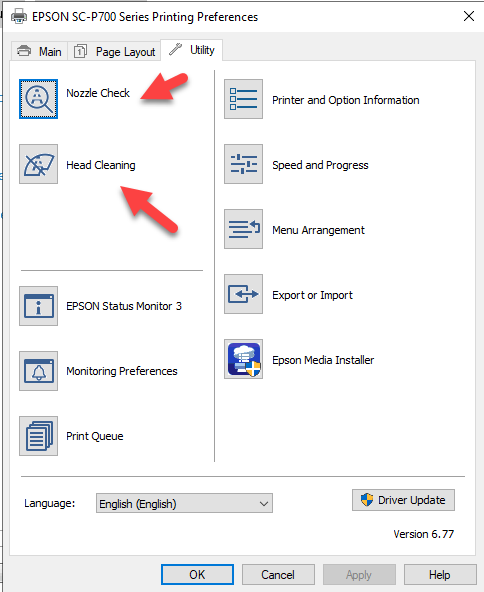
Start with a Nozzle Check
If your print quality starts to go down (thin lines, colors suddenly shift or become light) the first thing to do is run a nozzle check. Using a plain piece of paper, your printer will print a small test of each ink color and its many nozzles.

Virtually all inkjet printers have functions called head cleaning and head alignment.
Printer Head Cleaning
What to look for: Sudden color shifts in your prints. Blacks may start to have a bronzed look. Lines that run the same direction as the print head.
The head cleaning cycle ensures all ink nozzles are clear and free of any obstructions. Always run a cleaning if your printer has set for more than a month between printings.
Printer Head Alignment
What to look for: White repeating lines or a grid like pattern on your print can indicate misalignment of heads. Perform this function when needed.
You will need a couple of sheets of plain or photo paper for the process. Alignment ensures all the nozzles are pointing the right directing and firing ink in the right place. Some newer printer models have an automatic alignment and clean function you can run instead of the manual process.
Where to find these tools
Your printer will have a maintenance or utility function where you can access these plus other functions. Some printers, particularly HP models, may not have cleaning functions that you can access.
How Do You Clean a Printer?
To clean a printer, begin by turning off the printer and unplugging it for safety. Open the printer's casing carefully to access the interior components. Gently remove any visible dust, debris, or loose paper fragments using a soft brush or compressed air. Wipe down surfaces with a slightly damp, lint-free cloth to remove dirt and smudges.
Pay special attention to the print head and paper rollers. For stubborn residue, use isopropyl alcohol on a cloth, but avoid excessive moisture. Clean the paper trays and any accessible exterior areas. Once cleaned, allow the printer to dry completely before closing the casing and reconnecting it to power. Regular cleaning, ideally every few months, can help maintain optimal print quality and prevent potential issues.
Printer Maintenance on a Mac
You will likely find utility and maintenance controls in System Preferences » Printers & Scanners
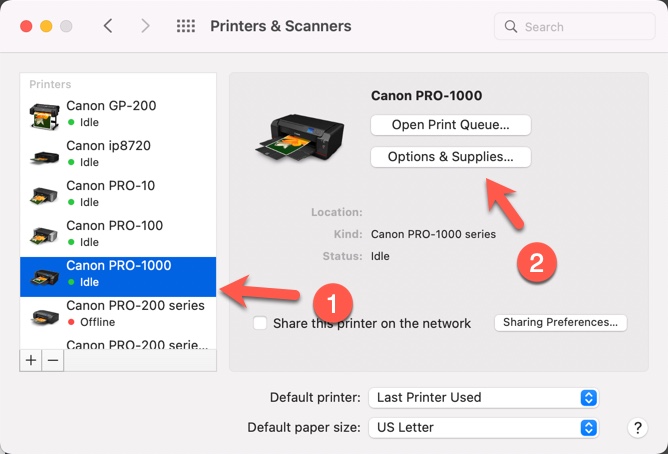
Single-click your printer in the printer list and click Options and Supplies near the top of the screen.
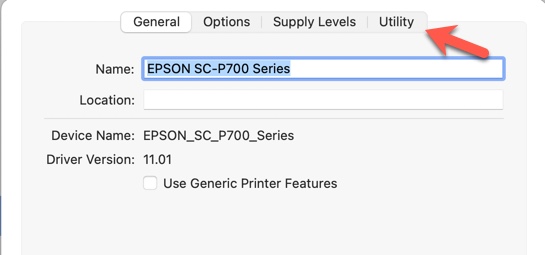
Epson

Canon
Not all models will have these options. If you do not see these options available, check your printer manual for instructions. Many newer models have control screens on the printer where you can access maintenance tasks.

Click on the Utility tab and then Open Printer Utility
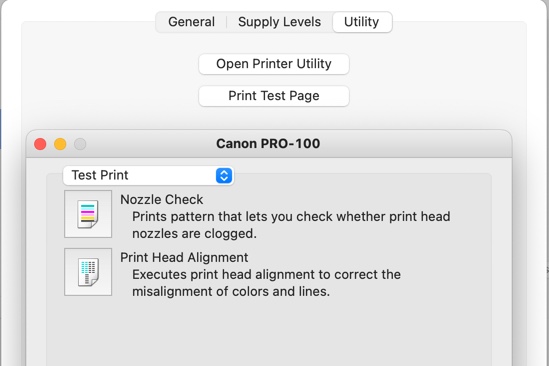
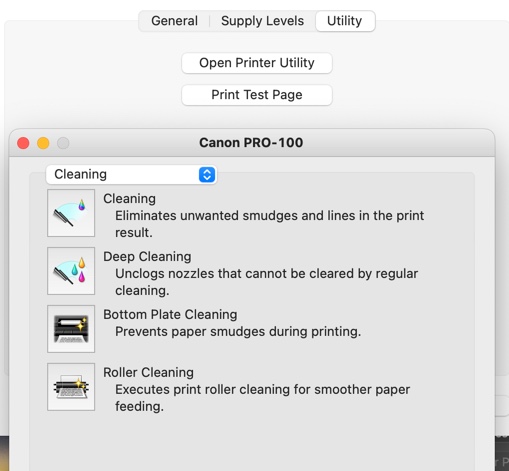
Not all models will have these options. If you do not see these options available, check your printer manual for instructions. Many newer models have control screens on the printer where you can access maintenance tasks.
Printer Maintenance on Windows
Epson printers
From the printer preferences, select the Utility tab.
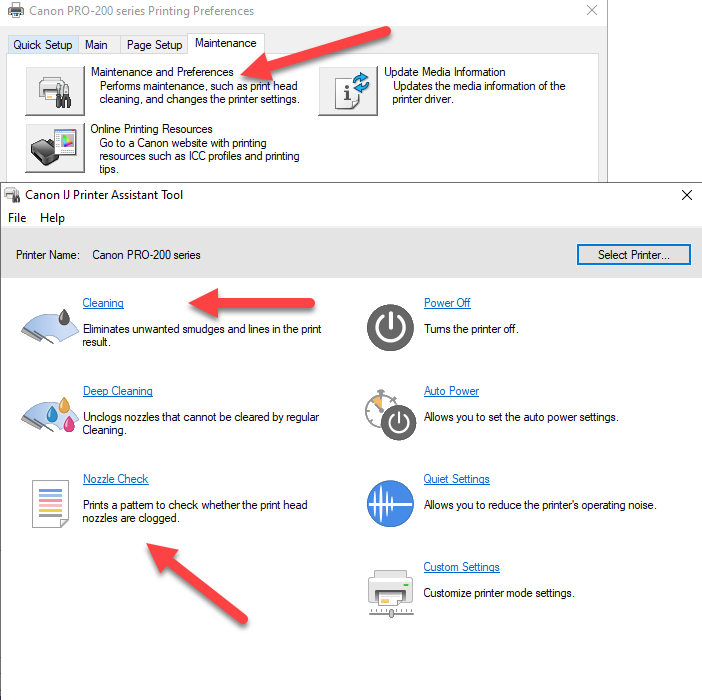
Canon Printers
From the printer preferences, select the Maintenance tab. The options you need are here on older models.
Many newer models have a Maintenance and Preferences option. Click it.
You will find the maintenance options on the Canon IJ Printer Assistant Tool.
Part 2: Printer Roller and Feed Mechanism Cleaning Tips
If you use your printer often, and especially if you use double-sided inkjet papers, proper maintenance of the feed rollers is important. Paper leaves behind dust as it runs through your printer. Double-sided papers leave inkjet coating behind, which can be slick. You will eventually notice inconsistent feeding or sometimes your printer will not feed at all.
Also, ink over-spray can build up on the rollers below the print head. This results in black streaks, usually on the back of your paper.
Follow the steps below and any feed or streaking issues should disappear.
NOTE! Red River Paper assumes no liability if you follow these cleaning steps. If you are careless in cleaning your printer, damage could occur. We have been cleaning our printers in this manner for 18 years with no problems to date.
What you will need:
Bottle of rubbing alcohol
Alcohol pads
If you can find it, ethyl alcohol pads seem to work better and are easier on rubber and plastic parts.
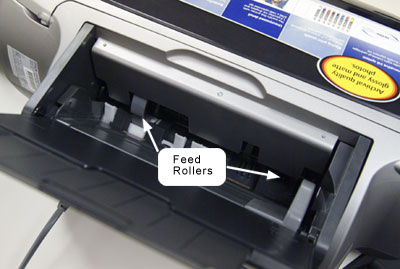
First, look down the feed tray of your printer - see image below.
Canon printer note!
Because Canon printers do not have an on demand paper feed button, you will not be able to reach the entire roller.
When running the alcohol soaked sheet through, you will have to make a print - we suggest a text document with only one line or character.
If you put your fingers in the feed path, you will feel rubber coated rollers. Take your alcohol swab and hold it on a roller with your finger. Now, push the paper feed button on your printer - the rollers will move. Don't be alarmed if your finger gets tugged a bit. It will NOT get pulled into the mechanism! Cycle the paper feed a few times and make sure you clean each roller.
If you are having trouble with ink streaks on your paper, try this:
Take an 8.5x11 sheet of plain paper. Soak the interior of the sheet with rubbing alcohol, leaving all four edges completely dry. Run this sheet through your printer 2-3 times front and back. This will clean all of the internal rollers of debris and any ink.
Video Tips
Inkjet Printer Feed Roller Maintenance
Finally
Use canned air to blow any remaining dust and debris from the print feed path and inside the printer. Be gentle with the air and do not get it too close to any delicate parts.
Red River now sells Cleaning Sheets and Packs that make this process easier and quicker.
Good luck!
Interested in how we got these amazing printing tools? Check out The Evolution of Inkjet Printing Technology.
Last updated: October 20, 2023


