These instructions are for Windows users. Mac instructions are forthcoming.
Unlike previous Epson wide format models, using note card sizes on on the Epson 4900 and 7900 is possible and fairly straightforward.
Because of the heavy and stiff nature of inkjet note cards, you will probably want to feed the paper one sheet at time through the top single sheet slot.
Get Started
Design your card in Photoshop, Elements, or other program as usual. When you are ready to print, go to the Printer Properties.
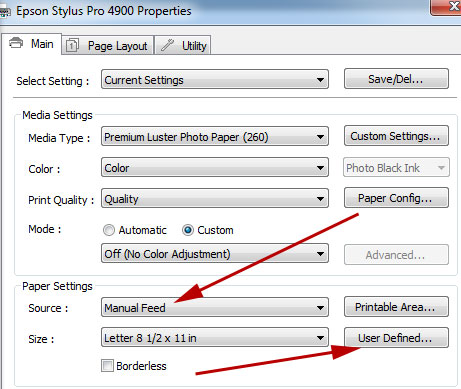
Look under Paper Settings. Set the Source to Manual Feed (to use the top single sheet feed). Now click User Defined.
User Defined Paper Size Dialog
Click "User Defined" in the Paper Size box on the left. Enter your paper dimensions on the right. Width - This is always the smaller dimension of your paper. Height - Always the longer dimension of your paper. Enter a name for the size at the top. Now click Save. Click OK. | 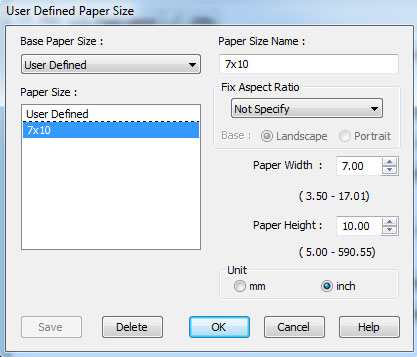 |
You will see that the new custom size is reflected in the Size drop down menu at right. Now click the Printable Area button. 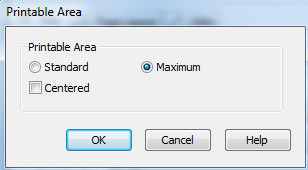 In this dialog click Maximum. If you do not, the leading edge margin will be larger than necessary and your card will not look correct. | 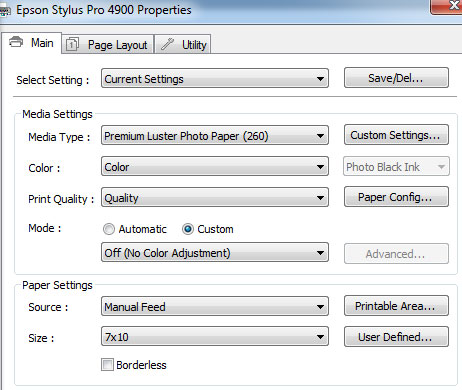 |
The next step is critical. Your printer has a sensor that measures the width of the paper. This must be turned off in order to use our card sizes.
Go to your printer and press the Menu button.
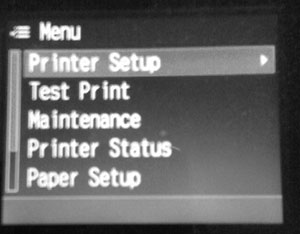 | 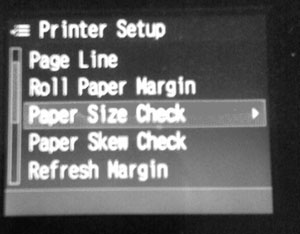 | 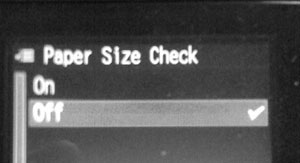 |
| Go to the Printer Setup menu | Choose Paper Size Check | Turn this feature off |
This feature will remain off until you go back and turn it on again.
Printing
Load the paper in to the top slot and follow the instruction on the printer control panel.
Because Epson is not expecting you to use smaller sheet sizes, the paper guide will not go over and touch the paper. Use extra care that you load the sheet into the printer as straight as possible before feeding.
Possible Problems
The margins on these wide format printers can be larger than you have encountered on desktop models. For the most part we cannot change these margins.
If your card is off, not centered up on the paper try the following:
1) Make certain the image is centered on the layout. Use Photoshop tools like the guides and rulers to verify.
2) Change the size of the image. Perhaps the easiest fix is to print a smaller image so as not to infringe on the margin rules.
Last updated: October 31, 2019


