A guide to using ICC color printer profiles in Photoshop Elements 8 9 for Windows
To begin the print process, go to the File menu and select PRINT. This dialog will appear.
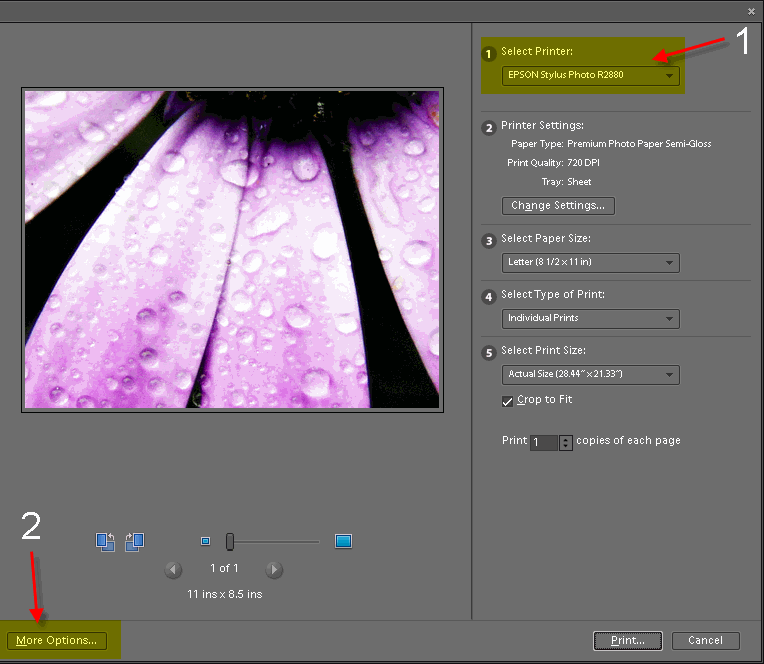
1) Select your printer from the drop down menu
2) Click the MORE OPTIONS button at the bottom left
This dialog will appear
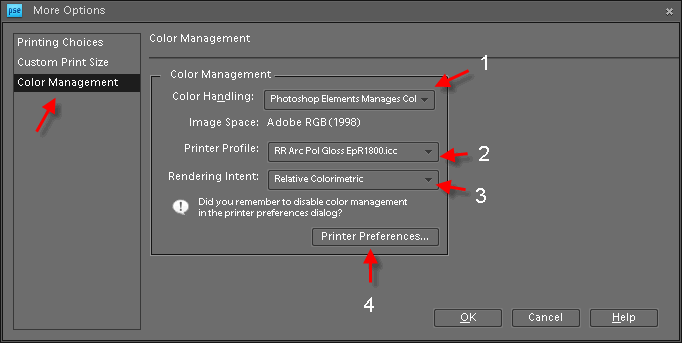
1) Choose Photoshop Elements Manages Color
2) Select the ICC profile from the drop down menu - The profile should have the name of your paper and printer
3) Rendering Intent - Either Relative Colorimetric or Perceptual
4) Now click the Printer Preferences button - this will launch your printer's preference dialog
NOTE: The concept in the next section is to choose the correct media type, print quality, then turn off the printer's color management controls.
EPSON
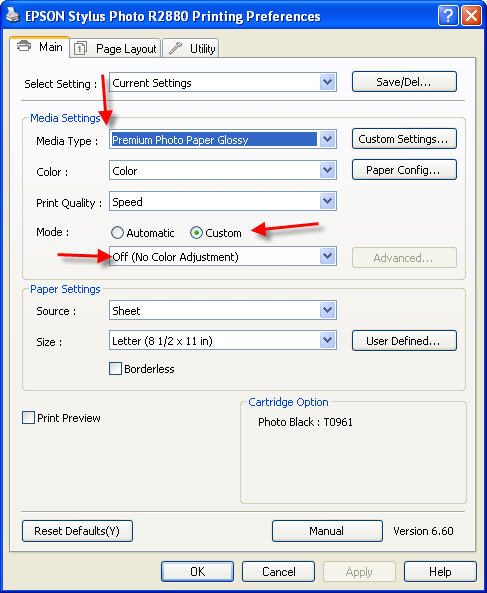
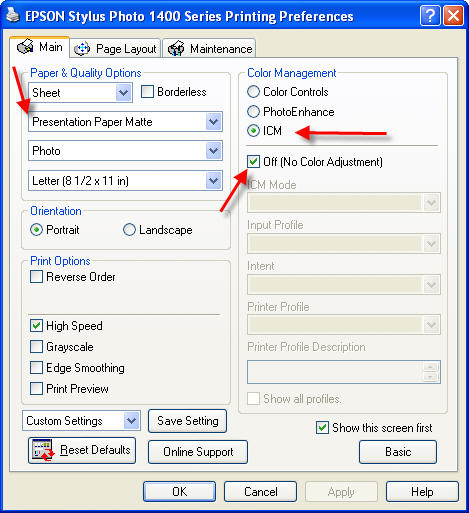
Epson printer properties have slight variation from model to model but the concept is the same.
1) Choose the Media Type recommended by the profile's instructions.
Note! The Red River paper name will not appear in this box.
2) Set quality to level recommended by profile's instructions
3) Set color management to Off (No Color Adjustment)
Once you verify the settings you can click PRINT
 |
CANON
Epson printer properties have slight variation from model to model but the concept is the same.
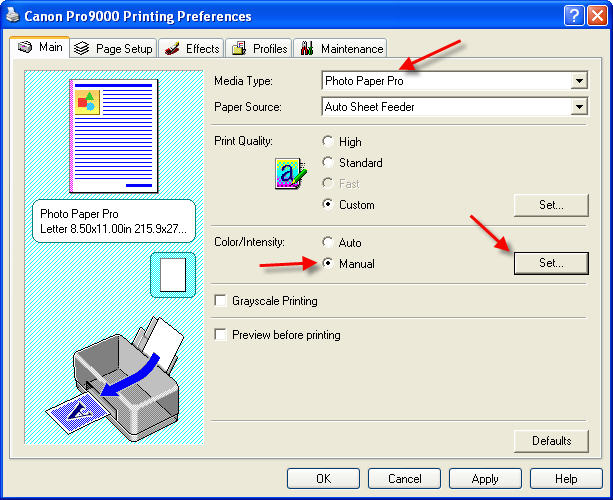
1) Choose the Media Type recommended by the profile's instructions
Note! The Red River paper name will not appear in this box.
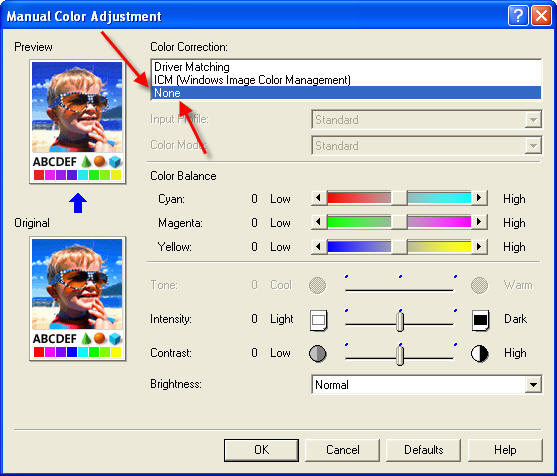
2) Under Color / Intensity click the Manual radio button and click Set
3) The Manual Color Adjustment dialog appears. Click None under the Color Correction menu.
Once you verify the settings you can click PRINT
HP
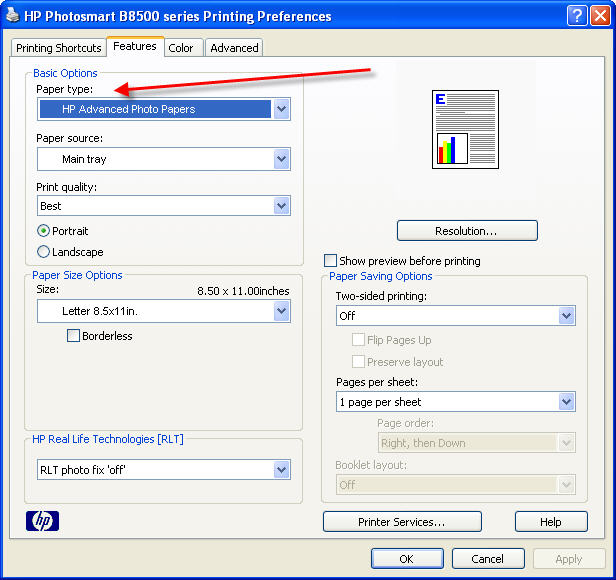
1) on the FEATURES TAB choose the Paper Type (Media Type) recommended by the profile's instructions.
Note! The Red River paper name will not appear in this box.
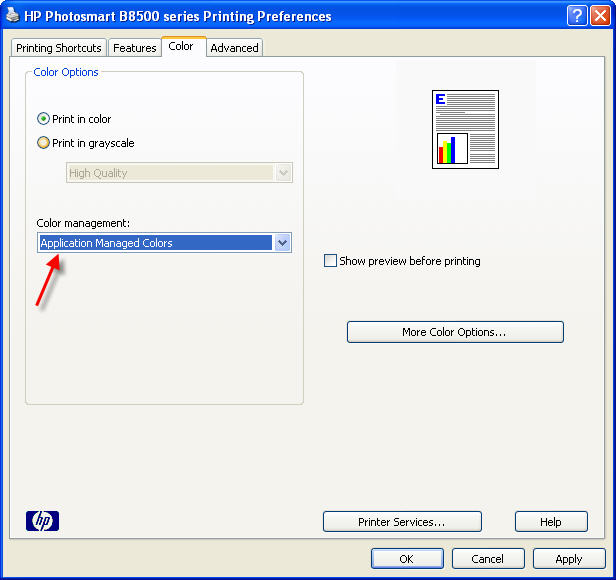
2) On the COLOR TAB choose Application Managed Colors at the Color Management drop down menu.
Once you verify the settings you can click PRINT
Last updated: August 29, 2019


