Most printers have a software based control to move the print head up or down to adjust for paper thickness.
The ability to raise the print head comes in handy if you've seen these problems:
- Pronounced lines in an image
- Scuff marks
- Ink splotches - particularly on the edges of paper
Review the screenshots below and refer to your printer's manual for more help on the topic.
Quick Links
Epson SureColor Series
Epson has removed the Platen Gap and Paper Thickness controls from the SureColor series drivers. You have to be aware of how to control these settings to get the most from your Epson SureColor Printer
EMY Files / Epson Media Files
Epson created EMY files to do a few things:
- Be a media type setting
- Contain advanced settings such as paper thickness, platen gap, ink density, and more.
They also removed the now embedded settings from the driver where they used to be easily accessible. They are good in that the EMY is a one-stop-shop for settings and troublesome if you don't like dealing with the Media Installer application.
Printer Control Panel
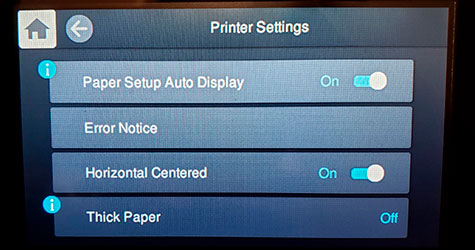
You can now find the Thick Paper setting on the printer control panel.
From the printer panel, go to Menu > General Settings > Printer Settings.
The question is, how does this setting relate to the paper thickness and platen gap that reside in EMY files? The answer is not answered directly by Epson's documentation. Our advice? If you are using thick paper, activate this setting in addition to using EMY files.
Epson Pro / Wide Format - Windows
Open your printer's Printing Preferences dialog. Locate and click on the Paper Config button.
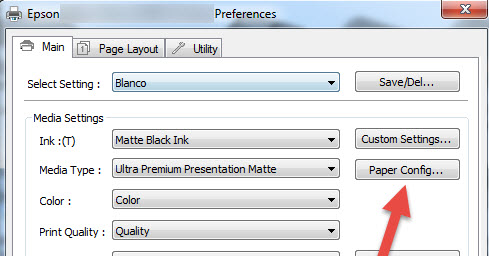
Paper Config as seen in Windows:
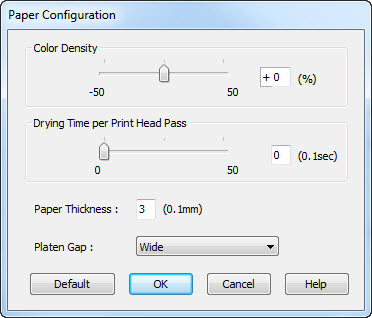
Paper Thickness
Epson did an odd thing here. The unit of measure is 0.1mm (millimeters). So, if you set Paper Thickness to 3, that translates to 0.3mm. The trouble here is that the paper industry does not use millimeters to describe paper thickness. We use mil, which is a thousandth of an inch. So you need to make a conversion from your papers thickness in mil to the millimeters Epson uses here. Here's the answer:
| Your Paper Thickness | Paper Thickness Setting |
|---|---|
|
From 5 mil to 10.4 mil |
Default |
| From 10.5 mil to 13.5 mil | 3 |
| From 13.6 mil to 16 mil | 4 |
| From 16.1 mil to 18 mil | 5 |
| From 18.1 mil to 22 mil | 6 |
Platen Gap
The PLATEN GAP controls the distance from the print head to your paper.
Set it to Wide or Wider for papers more than 12 mil thick.
Epson Pro / Wide Format - Mac
In the Mac OS the controls are found on the Advanced Media Configuration or Paper Configuration menu:
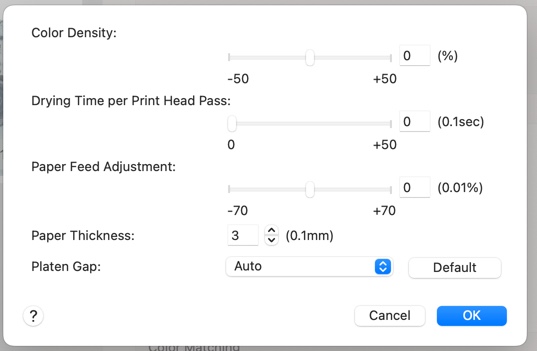
PLATEN GAP
The PLATEN GAP controls the distance from the print head to your paper.
Set it to Wide or Wider for papers more than 12 mil thick.
PAPER THICKNESS
Epson did an odd thing here. The unit of measure is 0.1mm (millimeters). So, if you set Paper Thickness to 3, that translates to 0.3mm. The trouble here is that the paper industry does not use millimeters to describe paper thickness. We use mil, which is a thousandth of an inch. So you need to make a conversion from your papers thickness in mil to the millimeters Epson uses here. Here's the answer:
| Your Paper Thickness | Paper Thickness Setting |
|---|---|
|
From 5 mil to 10.4 mil |
Default |
| From 10.5 mil to 13.5 mil | 3 |
| From 13.6 mil to 16 mil | 4 |
| From 16.1 mil to 18 mil | 5 |
| From 18.1 mil to 22 mil | 6 |
Epson Desktop Printers - Windows
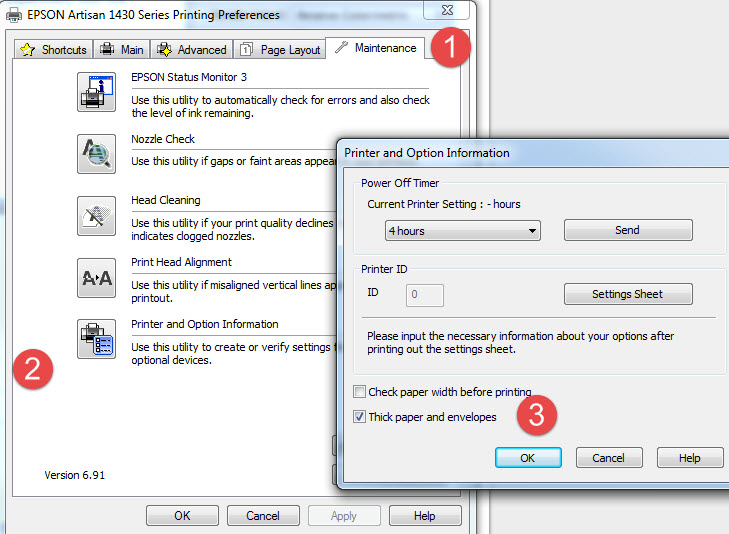
Epson desktop printers have a Thick Paper or Envelope setting.
1. Locate the Maintenance Tab in the printer preferences
2. Click on the Printer and Optional Information button.
3. Check the Thick Paper or Envelopes checkbox.
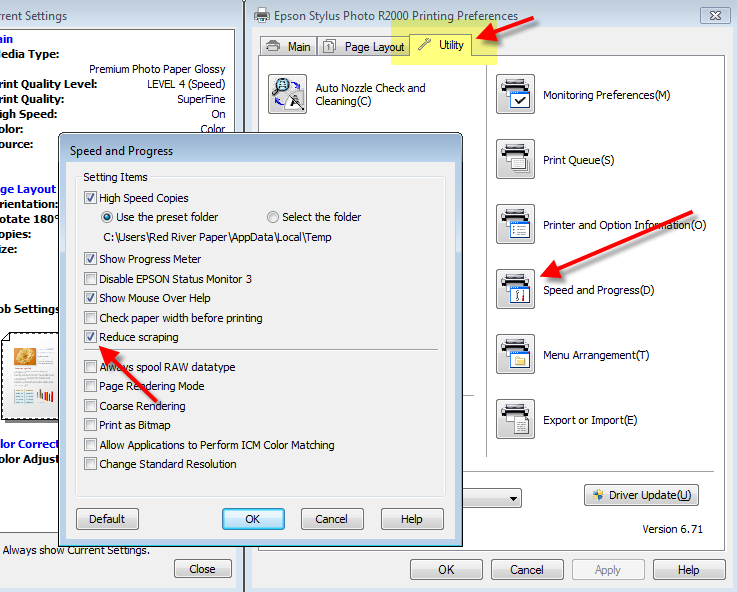
For some much older models, the feature name and location are quirky to say the least. Go to the printer properties and click on the Utility tab.
Epson Desktop Printers - Mac
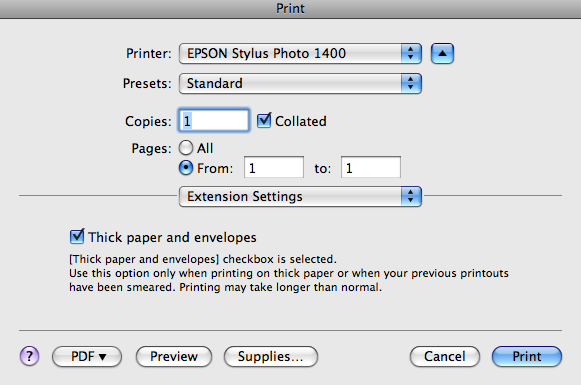
On a Mac you will look for an EXTENSIONS SETTINGS menu in the Print dialog.
Depending on your printer and version of the OS, this setting may not be available.
Canon Desktop - Windows
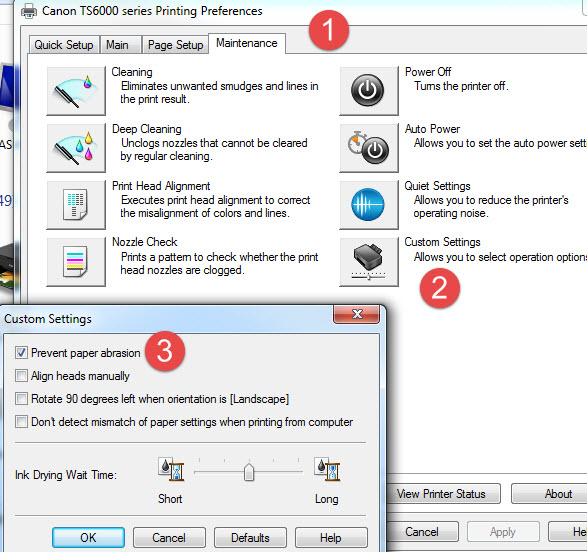
Canon desktop printers have a Prevent Paper Abrasion to minimize head strikes with thick paper.
On a Windows computer, go to the printer preferences.
1. Locate the Maintenance Tab
2. Locate and click the CUSTOM SETTINGS button
3. On the next menu click the PREVENT PAPER ABRASION check box.
Canon Desktop - Mac
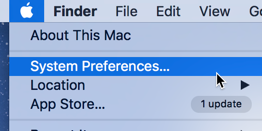
On a Mac you'll need to begin by going to SYSTEM PREFERENCES
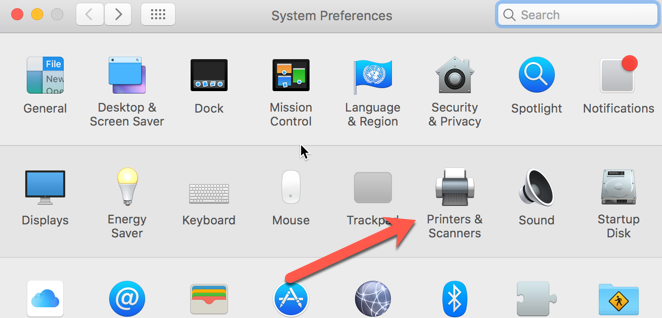
Once in System Preferences, locate and click on PRINTERS & SCANNERS
Locate your printer, single click it to highlight, then click on Options and Supplies.
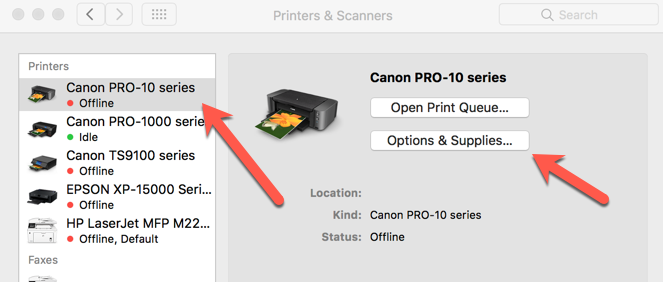
Click the Utility menu and then click Open Printer Utility.
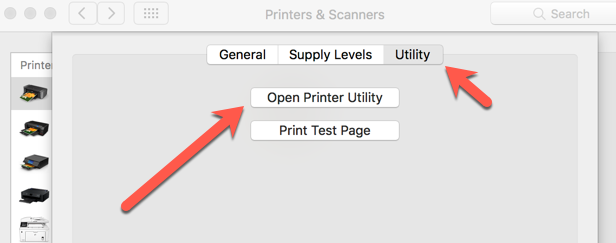
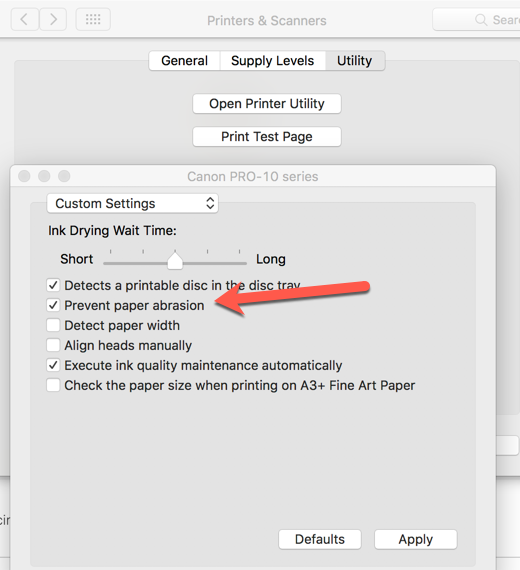
Click the PREVENT PAPER ABRASION check box and click apply.
Note: Your printer will need to be turned on and connected.
Canon Wide Format Printers
All Canon PRO printers, 17" wide and larger, have the thick paper setting on the printer control panel and embedded in AM1X config files.
The Canon term for thick paper is "Prevent Paper Abrasion". Check your printer's manual for control panel details.
Red RIver Paper makes AM1X config files are available for select models.
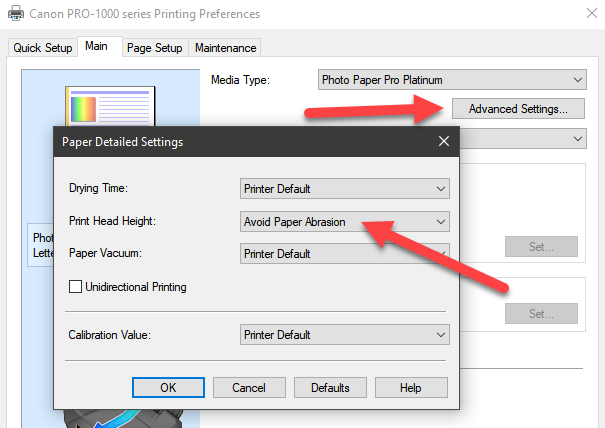
In once instance, the PRO-1000, the control is also included in the driver in the Windows OS.
HP Printers
As far as we can tell, HP printers do not have a thick paper or platen gap setting available to the user.
Related Posts and Information
Last updated: December 12, 2023


