Now that you have a completed greeting card layout in Photoshop,
its time to print.
First, you must define and save a custom paper size. Red River's greeting
card papers are NOT standard sizes, so you will not find them in the list
of paper sizes set by your printer manufacturer.
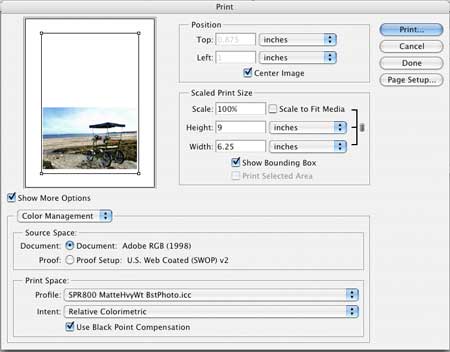
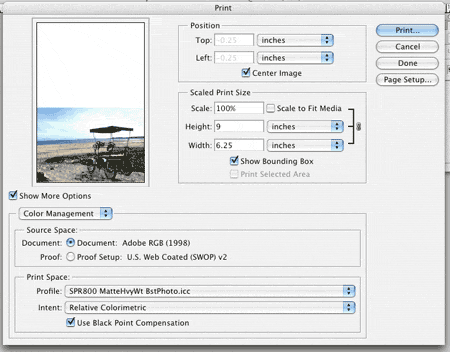
Go to the File Menu and select Print with Preview
You will notice
that the preview screen does not look right - there will probably
be too much white space around the card. This is because we have
not defined a custom paper size.
Make sure the Center Image checkbox is checked in the Position area
near the top of the dialog box.
Check to see that Scale is set to 100% and do not check
the Scale to Fit Media box.
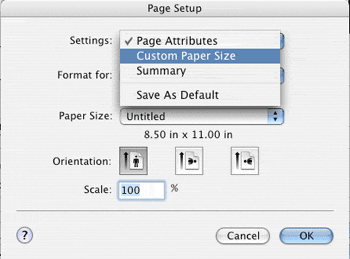
Click the Page Setup button near the top right of your menu.
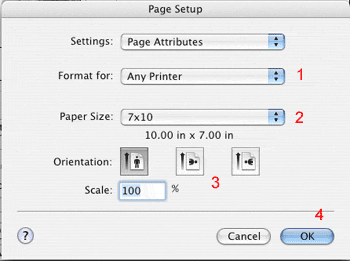
The Page Setup dialog box will appear. Under the Settings drop down
menu, choose the Custom Paper Size option.
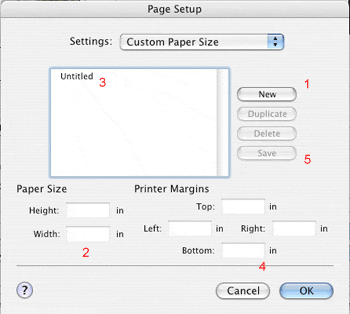
This dialog will appear.
Check the image at right for the order you will follow to make a
custom paper size:
1) Click New
2) Fill in the Paper Size using this chart:
Paper Size
Height
Width
7x10
10"
7"
6.25x9
9"
6.25"
5.5x8.5
8.5"
5.5"
3) Highlight and name your paper - call
it something that is easily recognizable
4) Check to see that the margins are all equal - they will usually
all be 0.25" all the way around
5) Click the Save button
6) Click OK
You now have a permanently saved custom
paper size that will appear in your list of paper sizes.
When you click OK from the custom size menu, you will arrive back
at the Page Setup dialog box.
Click on the drop down box labeled Format For and choose your printer.
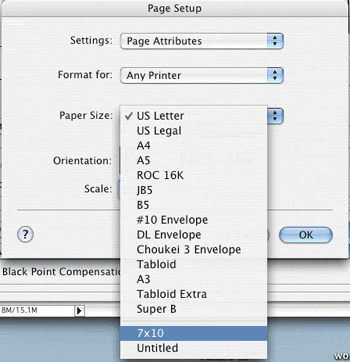
Next, click the Paper Size drop down menu.
You will see a listing of all sizes available for use with your printer
- including the new custom size you made above. Look near the bottom
of the list for any custom sizes. Choose the size you juse made.
When you have chosen a paper size, you will be back at the Page Setup
menu.
1) Make sure you have the correct printer chosen
2) Make sure you have the right paper size chosen
3) Click on the proper Orientation - the middle icon
For a landscape card it should be this icon:
Click OK
We are now back
at the Print with Preview menu. Notice how the preview image now looks
correct with no excessive white space or cropping around the image
layout.
From here you set any color management preferences then click Print.
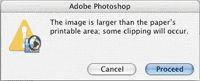
You may see this dialog box - click Proceed to begin the printing
process.
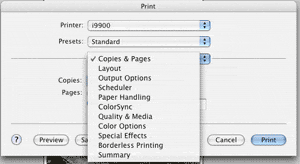
The next screen you should see is the Print dialog. Here you do what
you always do when preparing to print. Set media type based on our
instructions, set any color management preferences, and set how many
cards you wish to print.
Congratulations! You have set up and printed a Red River Paper greeting
cards. If you want a more customizable card layout, look at our advanced
instructions here.
Related Posts and Information
Last updated: August 28, 2024
WHAT CUSTOMERS SAY ABOUT US
My top recommendation...
Whenever I encounter another photographer who likes to print his/her own images, my first and only question is, "Where do you get your paper?" and regardless of the answer, my only response is "try Red River."
The reasons I give: 1) quality paper, good array of choices; 2) free color profiles that will make your printing easier and better; 3) excellent customer service, not only in the form of a library of sound articles on many printing issues/problems, but in the quick and competent response to every question/problem I have posed.
Keep up the good work, Red River. BTW, one of my photog friends just told me a few weeks ago that he followed my recommendation and now uses only Red River paper.
Papers with the Archival designtation can take many forms. They can be glossy, matte, canvas, or an artistic product. These papers are acid free, lignin free and can be made of virgin tree fiber (alpha cellulose) or 25-100% cotton rag. They are likely to have optical or fluorescent brightening agents (OBAs) - chemicals that make the paper appear brighter white. Presence of OBAs does not indicate your image will fade faster. It does predict a slow change in the white point of your paper, especially if it is displayed without UV filter glass or acrylic.
Archival Grade Summary
Numerous papers - made from tree or cotton content
Acid and lignin free base stock
Inkjet coating layer acid free
Can have OBAs in the base or the coating
Museum Grade Paper
Papers with the museum designation make curators happy. They are made from 100% cotton rag content and have no optical brightener content. (OBA) The base stock is acid and lignin free. The coating is acid free. This type of offers the most archival option in terms of media stability over time.
Museum Grade Summary
100% cotton rag content
Acid and lignin free base stock
Inkjet coating layer acid free
No OBA content
Photographic Grade Paper
Photo Grade products are designed to look and feel like modern photo lab paper. Most photo grade media are resin coated, which means they have a paper core covered by a thin layer of polyethelene (plastic) . Plastic gives the paper its photo feel, stability (flatness), water resistance, handling resistance, and excellent feed consistency.
Prints on photo grade media are stable over long periods. With pigment inks in a protected environment, you can see up to 80 years on-display life. All RC papers are Photo Grade for two reasons. Plastic content is not technically archival by museum standards. Also, the inkjet coating of all RC papers is slightly acidic. It facilitates instant drying and does not actually change the stability of your inks over time. Virtually all RC papers have optical brightening agents (OBAs).