A beginning note: This tutorial uses lots of screenshots
to help you understand the process better.
READ THIS BEFORE
STARTING! -
This is a "general guide" for using PictureIt to set up and print custom
greeting cards on Red River paper. Your screen may look slightly
different. Please read up on your software as this will make card setup
and printing much easier in the long run.
Step 1 - Make a custom Blank Picture.
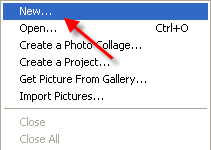
Go to the File menu and select a New Blank Picture.
A blank page will appear in the work area.
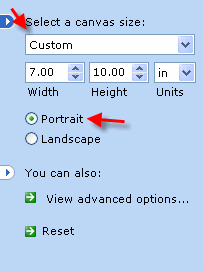
A dialog to define your custom size will appear on the left of your screen.
1) Set Canvas Size to Custom in the drop menu shown at right.
Paper Size
Height
Width
7x10
10"
7"
6.25x9
9"
6.25"
5.5x8.5
8.5"
5.5"
2) Click on the PORTRAIT button
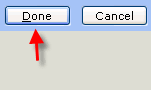
3) Click Done
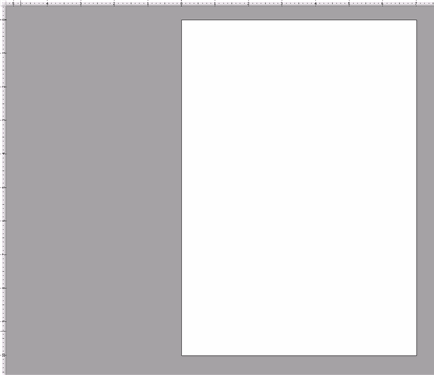
Your newly created blank canvas should look like this. Imagine this is an unfolded unprinted greeting card.
The mid-point of the card is the fold line.
Step 2 - Prepping Your Photo
We recommend opening your photos and resizing before putting them on the card layout.
Open your photo (File > Open)
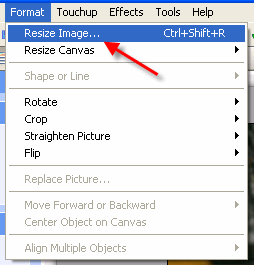
Resize your photo - go to Format > Resize Image and follow the steps.
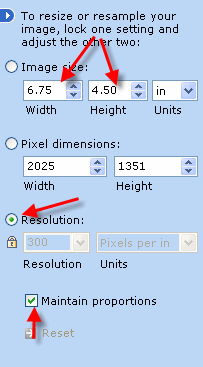
This menu will appear on the left of your screen.
Resize the photo using this table as a guide
NOTE! When you resize the program will maintain the image proportions. This means your photo will probably NOT be the exact dimensions listed above.
Card Size
Max Image Area
7x10
6.75" w x 4.75" h
6.25x9
6" w x 4.25" h
5.5x8.5
5.25" w x 4" h
NOTE: Set resolution to 300 and click the Resolution button to lock the setting
Save the photo (use a different name if you do not wish to alter the original)
Step 3 - Placing Photos on Your Card Layout
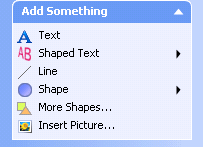
Find the ADD SOMETHING menu panel on the left side of your screen.
Click Insert Picture - now locate the photo you just saved and click OK.
The photo will now appear on your card layout.
NEXT - Setting your Image Location on the Card
Your photo is now on the card layout as a "layer". It will now appear in the STACK pallet at the top right of your screen.
If you do not see the STACK pallett find this menu and click STACK
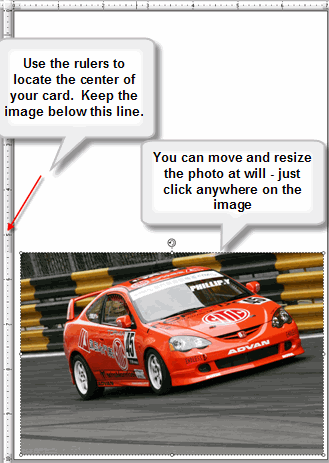
You can now click on the photo and move, resize, and even rotate it freely on the layout.
Using the RULERS get the image centered on the lower half of the card.
NOTE: The 1/4" rule is important to remember
To keep the printer from cropping your photo, make sure you have
at least 1/4" space between the photo and the edges of your card
layout.
Step 4 - Put some text on your card (optional)
Using the ADD SOMETHING feature - you can add text, shapes, lines, and more photos if desired.
Lets look at adding some basic text.
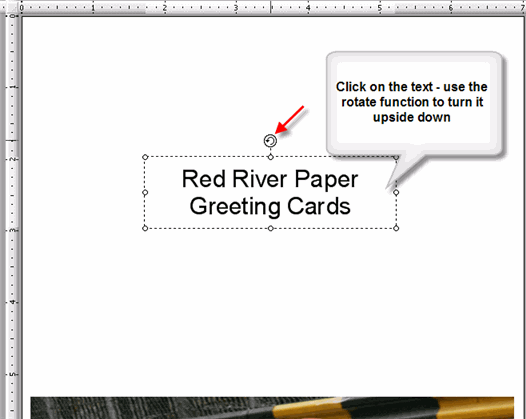
Click the TEXT button
The text tool appears on your layout - enter the desired text and make any changes using the text menu at the top of the screen. Check your software manual for help with that feature.
For text on the BACK of your card.
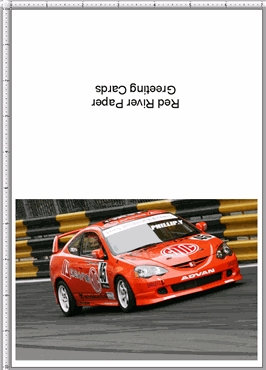
You must rotate the text 180 degrees - it will appear upside down on your layout.
Click on the rotate icon and move your mouse to complete the rotation.
You now have a completed basic photo card layout with some text on the back.
Once you are satisfied with the layout click below to begin the printing process.
I've been using Red River Paper's card stock for my illustrated greeting cards and posters and NO other matte cardstock compares. My customers love their prints and even some other artists and greeting card companies have emailed me personally after receiving samples and orders asking what kind of paper I use because the prints are so vibrant!
Papers with the Archival designtation can take many forms. They can be glossy, matte, canvas, or an artistic product. These papers are acid free, lignin free and can be made of virgin tree fiber (alpha cellulose) or 25-100% cotton rag. They are likely to have optical or fluorescent brightening agents (OBAs) - chemicals that make the paper appear brighter white. Presence of OBAs does not indicate your image will fade faster. It does predict a slow change in the white point of your paper, especially if it is displayed without UV filter glass or acrylic.
Archival Grade Summary
Numerous papers - made from tree or cotton content
Acid and lignin free base stock
Inkjet coating layer acid free
Can have OBAs in the base or the coating
Museum Grade Paper
Papers with the museum designation make curators happy. They are made from 100% cotton rag content and have no optical brightener content. (OBA) The base stock is acid and lignin free. The coating is acid free. This type of offers the most archival option in terms of media stability over time.
Museum Grade Summary
100% cotton rag content
Acid and lignin free base stock
Inkjet coating layer acid free
No OBA content
Photographic Grade Paper
Photo Grade products are designed to look and feel like modern photo lab paper. Most photo grade media are resin coated, which means they have a paper core covered by a thin layer of polyethelene (plastic) . Plastic gives the paper its photo feel, stability (flatness), water resistance, handling resistance, and excellent feed consistency.
Prints on photo grade media are stable over long periods. With pigment inks in a protected environment, you can see up to 80 years on-display life. All RC papers are Photo Grade for two reasons. Plastic content is not technically archival by museum standards. Also, the inkjet coating of all RC papers is slightly acidic. It facilitates instant drying and does not actually change the stability of your inks over time. Virtually all RC papers have optical brightening agents (OBAs).