- Fundamental Concepts
- Profiling Services
- Downloading the Charts
- Chart Printing Tips
- Canon imagePROGRAF Pro series printers (Windows and Mac OS)
- Other Canon Printers - Windows
- Other Canon Printers - Mac OS
- Epson Printers - Windows
- Epson Printers - Mac OS
- HP Printers
- Other Printers and Operating Systems
Fundamental Concepts
What are ICC profiles?
Simply put, ICC profiles are files which describe the color behavior of a hardware device so that appropriate adjustments can be made at the software level.
Technically "ICC" stands for International Color Consortium but if you think of the "CC" in ICC like "Color Correction" then that can be easier to remember.
There are various different kinds of ICC profiles (such as for cameras or for monitors) but here we will focus on ICC profiles for printers.
In the context of printing, ICC profiles describe how printer, its inks, and a given paper work together to produce colors. For example, if I tell the printer "Print navy blue (#000080)" what exact color does it actually print? The printer manufacturers may think people like their navy blue to be more green, and so may have designed the printer to work that way by default. Or, the paper may have warm or cool tones that make the navy blue print more yellow or more green. ICC profiles record information about how a given printer+ink+paper combination actual handles color in the real world, with those (and a bunch of other) factors taken into account.
Each combination of printer + ink formulation + paper needs its own profile, as a general rule. In some cases, different models of printer in the same series will use the same inks, print head, and internal color mappings and so profiles can be shared (such as for the Canon Pro-2600 and Pro-4600 where the Pro-4600 is just a wider version of Pro-2600).
How are ICC profiles created?
A series of color patches, all with known values, is printed onto the paper and printer combination being profiled.
The set of patches can vary from 250 different colors up to about 10,000 different colors - though above 2,000 you start to see diminishing returns. The more patches used, the more accurately the generated ICC profile will describe that particular paper+ combination. The tradeoff is the more patches used, the more paper and ink needed, more time printing the patches, scanning them back into the computer and calculating the profile data (see below).
The set of patches is printed with all automatic color adjustments turned off in order to capture information about the printer responds at its most base level. We need to see how the printer itself works, not how some auto-adjustments work, because we will be overriding the auto-adjustments when we print using the ICC profiles we generate through this process.

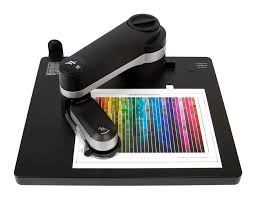
Once printed, we scan the printed charts using a device called a spectrophotometer.
This device shines a carefully calibrated light onto each color patch and the reflected light passes through prism to break it up into a bunch of different wavelengths, and each of those wavelengths is then measures separately. This gives us very, very detailed information about what colors are actually printed. We can then compare this data with what we told the printer to print in the first place, and from there create an ICC profile to use for adjusting that difference.
Info for color nerds
As of the writing of this article, we use the X-Rite i1 Pro3 and Pro3 Plus spectrophotometers (depending on the media and printer being profiled) along with the X-Rite i1iO scanning table to help ensure accurate readings. We then run the data through the free and open-source Argyll CMS colprof application to calculate and generate the ICC profile.
For color nerds, all of our general purpose profiles produced after the summer of 2024 were scanned using m1 mode as per FOGRA recommendation (this recommendation matches our own internal studies as well). The exceptions are profiles of glossy textured media (such as satin canvas) which are scanned in m3 mode to remove the effect of glare off of the textured surface, and our specifically labeled "Graphic Design" profiles which are scanned using m2 mode for use in exact color matching under LED lighting.
Our profiles produced after the summer of 2024 use the ICC.1 v2.2 specification. Most use AdobeRGB for Perceptual gamut mapping. We assume D50 illuminant without any additional OBA compensation and process the profile data at "high" or "ultra" quality.
Profiling Services
There are a couple cases, however, where you may need or want to use our profiling services.
Here is how we handle each of these cases:
You have an inkjet printer that we don't have ICC profiles for
First, contact us through our support system to see if profiles are already in progress or planned for your model of printer and to ensure compatibility.
There is no charge in this case, assuming you are using official inks made by the printer manufacturer. You can choose between any of our pre-made color chart sets. See "Downloading the Charts" below on which one to choose.
You will need to supply the paper for this - you can use our samples sheets, which you can order here, in case you don't have letter size of the paper on hand. If your printer uses roll-based media then you can use that and then trim it down to letter size after printing.
Once you have the charts printed, following the instructions below, contact us through our support system for instructions on mailing the charts to us. The ICC profile will usually be ready within about 10 days of us receiving the charts.
We have ICC profiles available for your model printer, but you want custom profiles for your exact printer
A variety of factors can influence ICC profile accuracy, such as manufacturing tolerances, humidity, altitude, and printer age differences between the printer that we created our profiles on and your printer. If you want a higher degree of color accuracy than the ICC profiles that we provide, we offer a standard custom profile creation service.
We charge $99 per profile for this service and you can choose between any of our pre-made color chart sets. See "Downloading the Charts" below on which one to choose.
You will need to supply the paper for this - you can use our samples sheets, which you can order here, in case you don't have letter size of the paper on hand. If your printer uses roll-based media then you can use that and then trim it down to letter size after printing.
Be sure to read all the instructions on this page for your printer and operating system before ordering any paper for chart printing. Once you have the charts printed, following the instructions below, contact us through our support system for instructions on mailing the charts to us. They will usually be ready within about 10 days of us receiving the charts.
You want to use our Profiling Service for non-Red River Paper media
We understand that our customers are often using media from multiple different paper companies. Not all manufactures provide ICC profiles (or they may provide low quality ICC profiles). We can create profiles for such media for $99 per profile, the same as the section above.
We have ICC profiles available for your model printer, but you use 3rd party inks
Inks made by companies other than the printer manufacturer typically require custom ICC profiles to get an exact match. We offer a special discounted price for this situation.
We charge $49 per profile for this service and it is otherwise the same as above.
Totally custom profiling situation
Need custom color charts for a very specialized application, CMYK profiling, or some other custom solution? Contact us through our support system to get a custom quote based on your needs.
Downloading the Charts
We have four different options for pre-made color charts that you can print for our Profiling Service.
Its up to you which color chart to use based on the amount of time, media, and ink you would like to use.
- 1-page chart: Good enough for casual usage and nice because you only have to print a single letter-size page. This saves you time, ink, and media.
- 2-page chart: Recommended for most cases. This chart has more than enough color patches to get professional level color accuracy.
- 3-page chart: Also called "2-page plus neutrals". Recommended for artwork reproduction or if frequently printing Black & White photos (neutral or toned). This chart set adds a ton of neutral and near-neutrals to the 2-page color set for increased color accuracy where our eyes are their most sensitive.
Contact us through our support system if unsure which chart set to download. The 2 or 3 page are by far the most common. The 1 page is fine for non-professional usage.
After downloading, unzip the files and read the Chart Printing Tips section. Then follow the instructions below based on your printer and operating system.
Chart Printing Tips
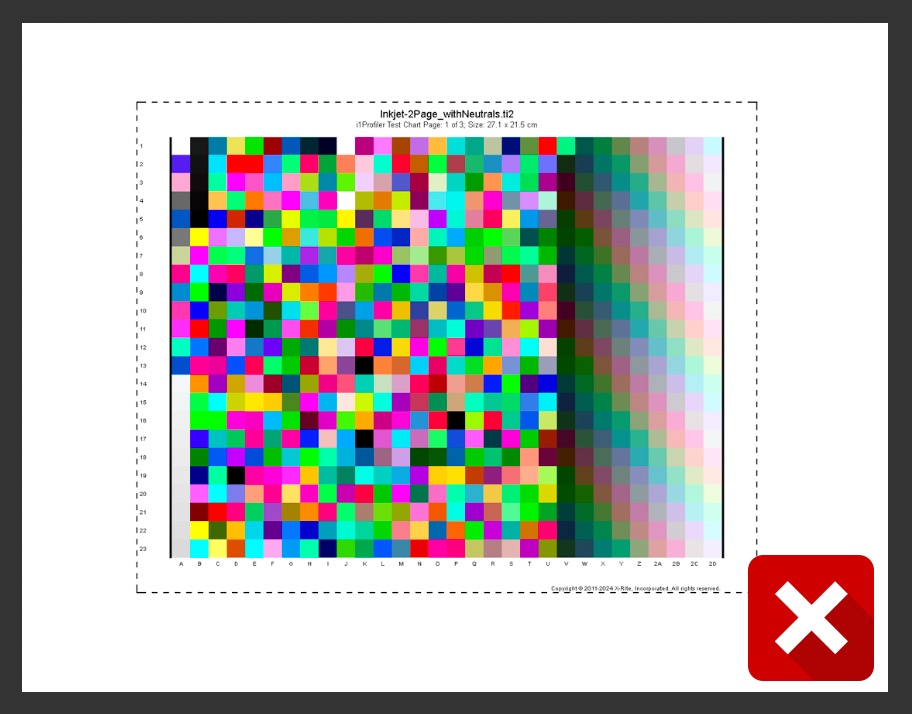
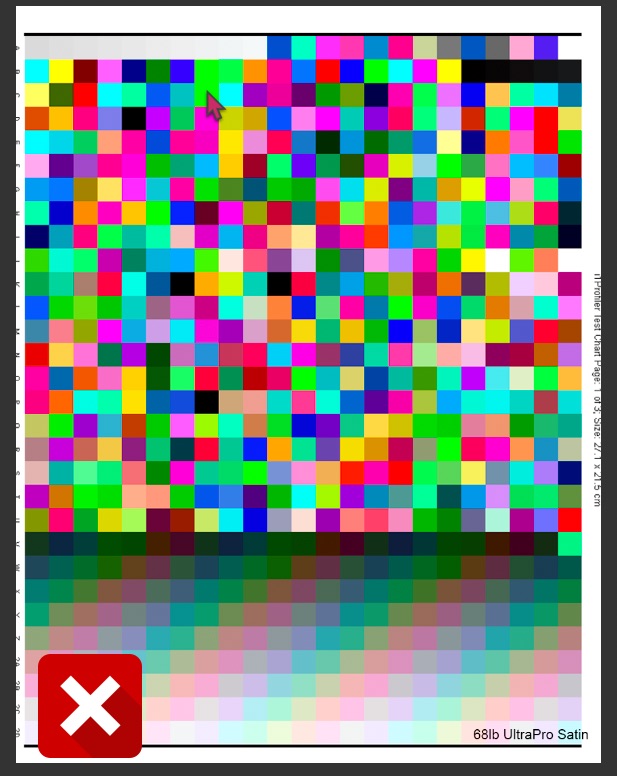
First, the charts need to be printed in the correct orientation, so that all of the color squared are visible.
Also be sure to print all the pages in the chart set that you chose. If you do the 3 page chart (aka "2 page plus neutrals") but only send the first page then we will not be able to create the ICC profile until you send the other pages.
Also make sure you only print on one side, even if the paper is double sided.

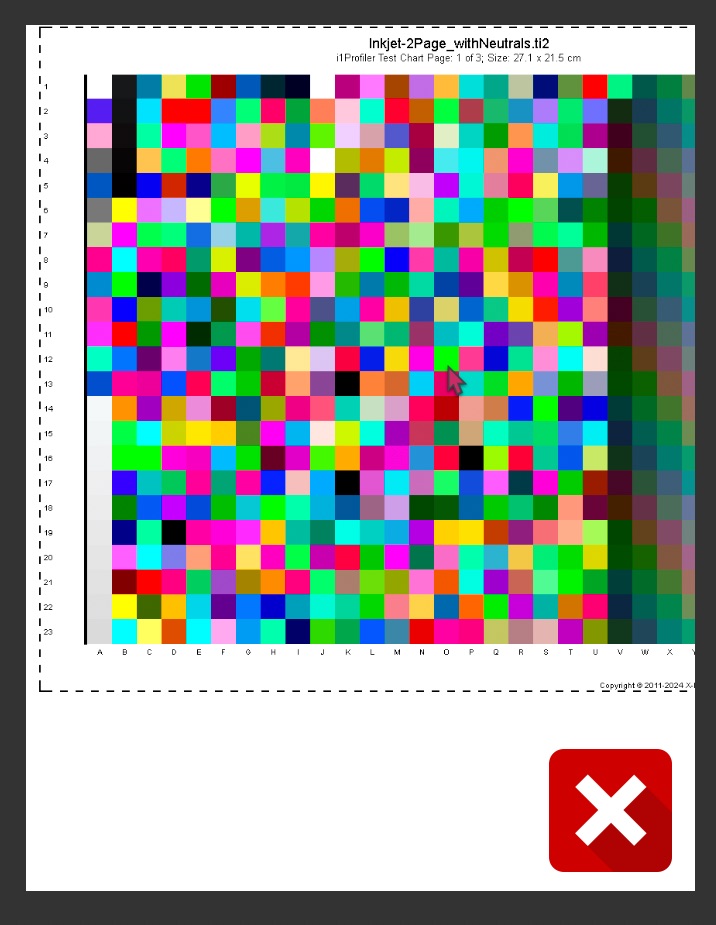
The chart should fill a letter size (8.5" x 11") page.
Don't shrink down the chart. Though it can be made slightly larger.
It is OK if the dashed lines, copyright, numbers on the left, and page title are cut off
As long as the page number and the area of all of the squares are on the page, that is the most important thing.
If the name of the paper, or anything else, is already printed on the front of the paper (as with our sample sheets) make sure the color squares do not overlap as that will change the color of the square to the measuring instrument.
Some printers, such as Canon roll paper printers, require a large trailing margin on cut sheets - so be sure the shift the chart over a bit so that no color squares get cut off.

Canon imagePROGRAF Pro series printers (Windows and Mac OS)
If you have a Canon imagePROGRAF Pro series printer that supports the free Canon Professional Print and Layout software, then properly printing the color charts is super easy, barely an inconvenience. Supported models (as of writing this article) include: Pro-200, Pro-200S, Pro-300, Pro-310, Pro-1000, Pro-1100, Pro-2000, Pro-2100, Pro-2600, Pro-4000, Pro-4100, Pro-4600, Pro-6000, Pro-6100, and Pro-6600.
If you don't already have it installed, you can download Professional Print and Layout from the Canon website on the support page for your model of printer - under Software and Drivers.
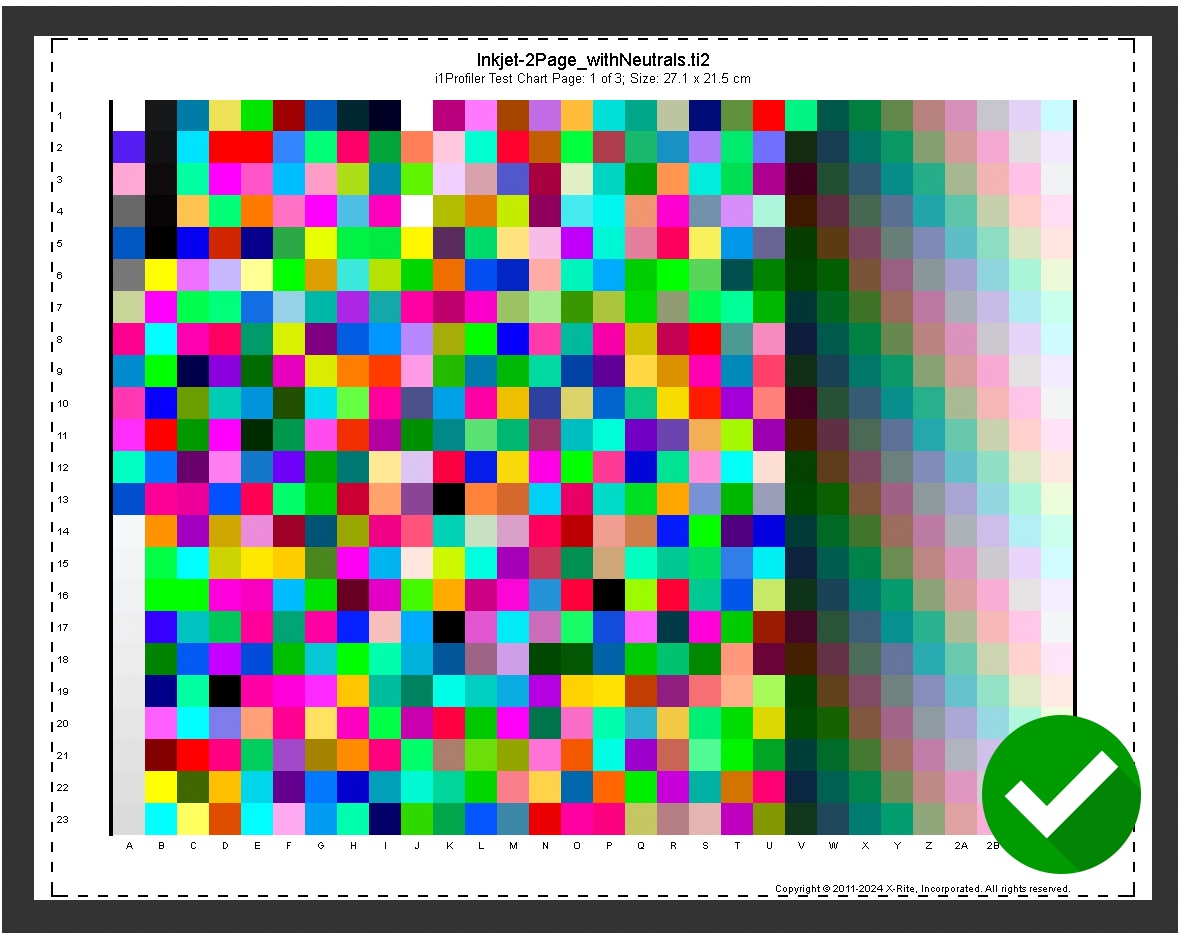
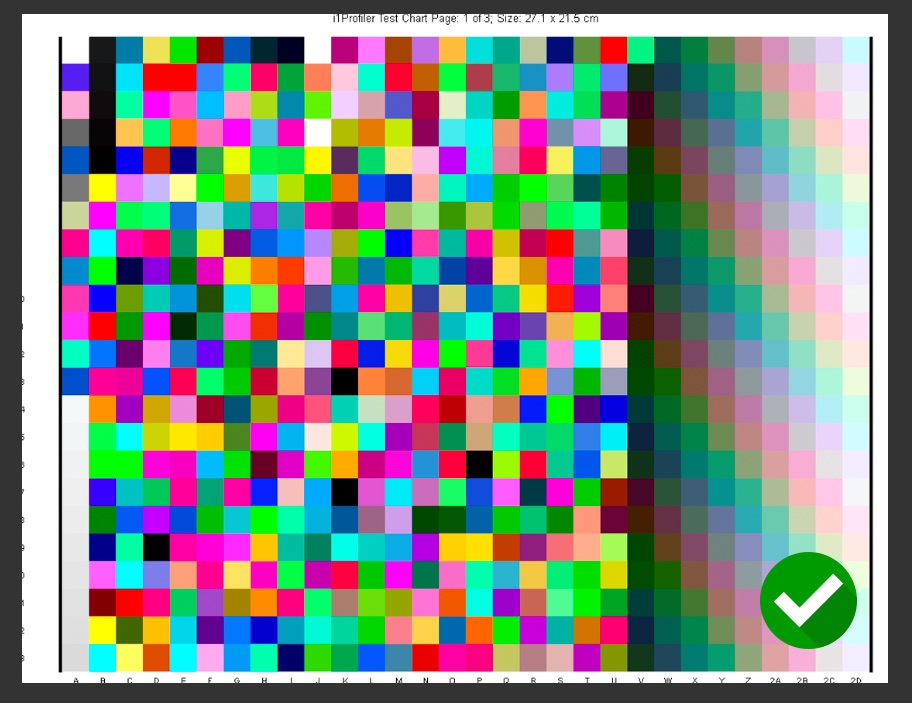
Once you have Professional Print and Layout setup and running, open the files you downloaded from the Downloading the Charts section above. For example, if you choose to do the 3-page chart it would look something like this.
You may need to rotate the color chart so that it fits on the page, also be sure that it fills the whole page. If the color squares are too small, then our spectrophotometer will not be able to read the patches correctly.
Be sure to set the following settings inside of Professional Print and Layout


Media Type should be set according the paper you are printing the charts on. This is important to set correctly, if unsure contact us through our support system prior to printing the charts.
Paper Size should be Letter unless you are printing on a larger size or roll and then trimming it down.
Borderless Printing should be off
We recommend printing the color charts with Print Quality set to Highest
Clear Coating should be set to Auto for matte papers and to Printed Area or Overall for papers that have a sheen
Contrast Reproduction and Depth Information should be off

The Color Mode setting in the Color Management section is THE MOST IMPORTANT setting when printing color charts.
You can mess up other parts and still get reasonable results, but if this is set wrong the charts will be unusable.
Color Mode MUST BE SET TO "No Color Correction"
Once you have everything set, go ahead and print all of the pages of your chosen chart set.
Once you have printed all of the pages for your chosen chart set, contact us through our support system for instructions on mailing the charts to us. They will usually be ready within about 10 days of us receiving the charts.
Other Canon Printers - Windows
For Canon printers that don't support the Canon Professional Print and Layout software, such as most home-office oriented printers, we will need to use a program called Adobe Color Print Utility on Windows.
Note that you cannot print color charts using Photoshop, Lightroom, Affinity Photo or other similar software as they will always apply color correction when printing and we need to be able to print the charts with no color correction at all applied.
First, download Adobe Color Print Utility for Windows from this page: https://helpx.adobe.com/photoshop/kb/no-color-management-opt...
TODO
Other Canon Printers - Mac OS
Most home-office style Canon printers don't support ICC color profiles on Mac OS. To find out if yours supports profiles, it is necessary to check the print driver installed.
First, it is necessary to check your driver version number in System Settings. If it is a single digit number or says AirPrint then you cannot use ICC profiles with this printer driver.
If thats the case, you can try checking with Canon to find out if they have a non-AirPrint driver version available for your model. Most Canon home-office 4 or 5 ink printers only support AirPrint on Mac OS.
Canon printers with 6 or more inks will typically have a non-AirPrint driver available from Canon that you can install.
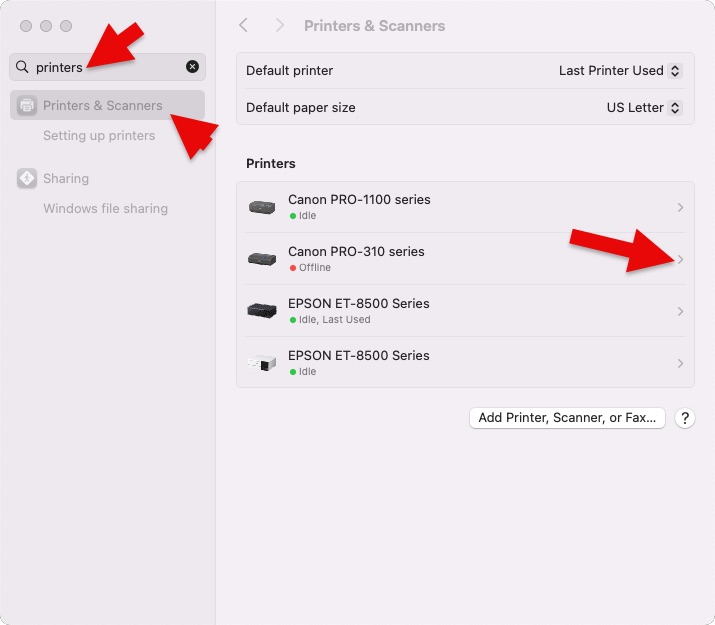
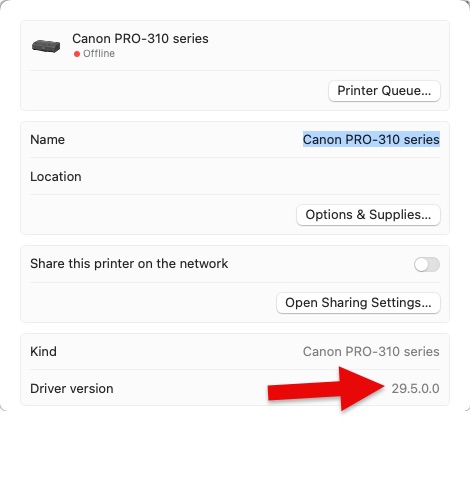
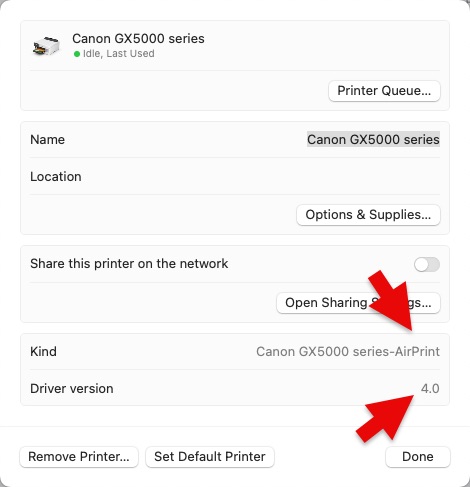
If your driver version is a double-digit number then you can continue with these instructions.
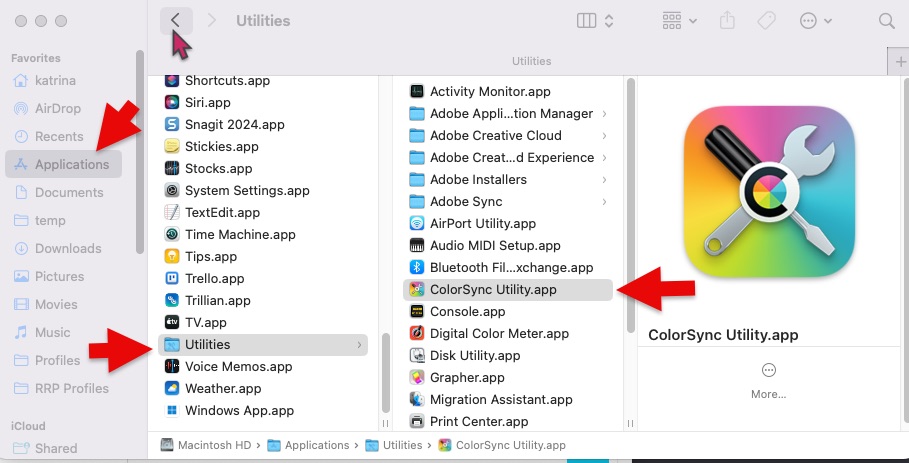
Open the ColorSync Utility app. This comes pre-installed on Mac OS, it isn't something you need to install.
You can find it under Applications -> Utilities -> ColorSync Utility
Next, you will need to open the chart files and then print them:
* in Landscape orientation
* scale to 100%
* Color set to Print as Color Target
* Use Black Point Compensation turned off.
Print each of the pages of your chosen color chart set this way.
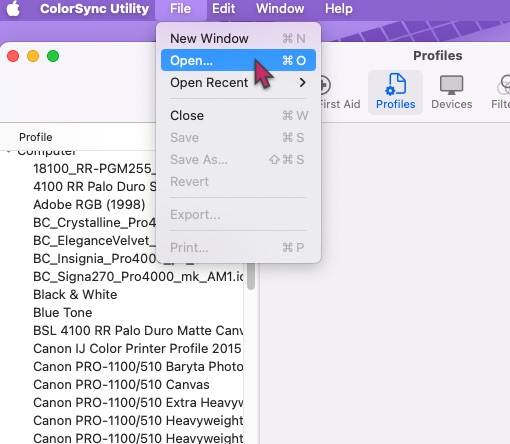

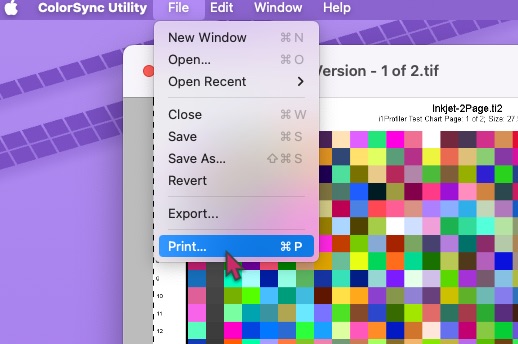
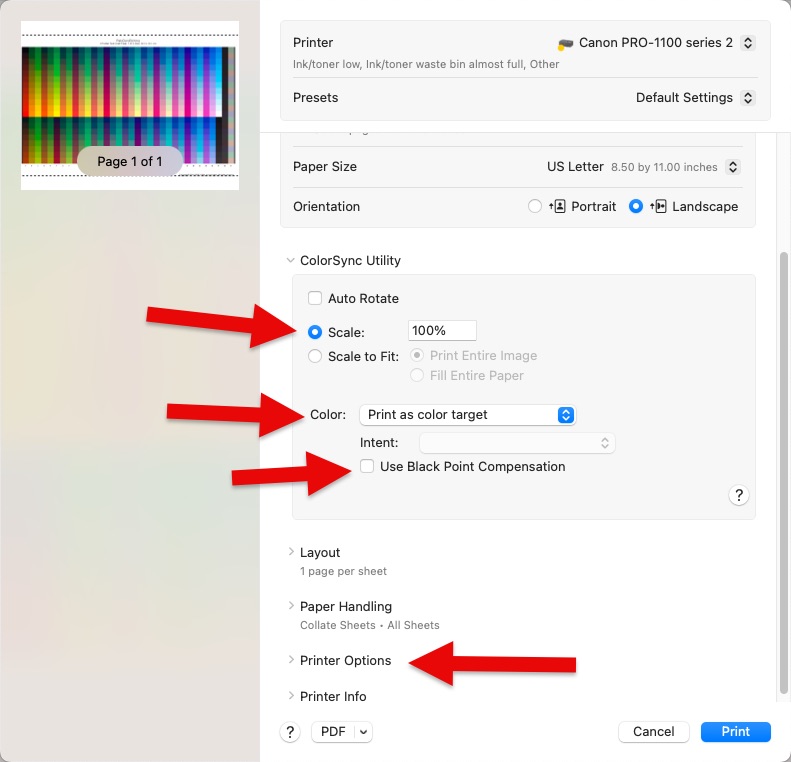
If "Print as Color Target" is grayed out, try going into your system settings and removing the printer then re-installing the driver downloaded from the Canon website and re-adding the printer. That will typically fix this problem. If it is still grayed out, then you will be unable to print color charts on this printer from your Mac OS computer and will need to get access to a Windows computer to print the charts.
After setting the above, go to Printer Options -> Quality and Media and set your Media Type, Paper Source, and Print Quality
If Rendering Intent is an option here, and not grayed out, set it to No Color Correction
Then print the charts, keeping in mind the Chart Printing Tips section above. You will very likely need to set these options manually for each page when you go to print.
Once you have printed all of the pages for your chosen chart set, contact us through our support system for instructions on mailing the charts to us. They will usually be ready within about 10 days of us receiving the charts.
Epson Printers - Windows
To print color charts using an Epson printer on Windows, we will need to use a program called Adobe Color Printer Utility.
Note that you cannot print color charts using Photoshop, Lightroom, Affinity Photo or other similar software as they will always apply color correction when printing and we need to be able to print the charts with no color correction at all applied.
First, download Adobe Color Print Utility for Windows from this page: https://helpx.adobe.com/photoshop/kb/no-color-management-opt...
Next, open the program contained in the .zip file and then select the .tif file of the first page of the chart set you will be printing.
Then, open the printer settings by pressing the [Print...] button and then [Properties...]

Set the Paper Size to Letter, set the Paper Type according to the paper you will be using (email us with a list of the options available on your specific model of printer if you have questions about what to select), and make sure Print Preview is OFF
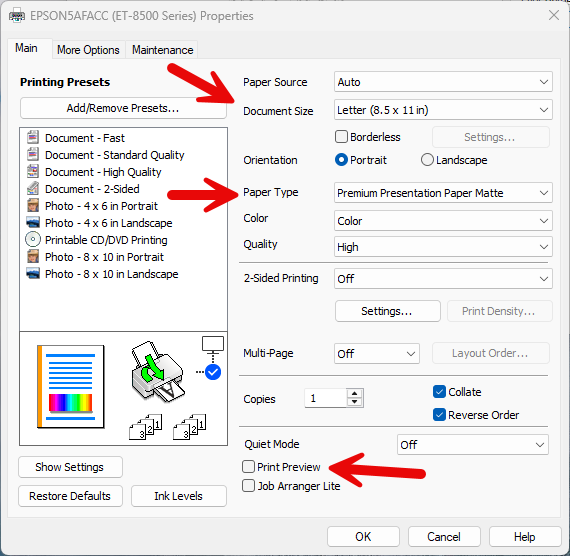
Next, select the More Options tab and set Color Correction to Custom and press the Advanced... button
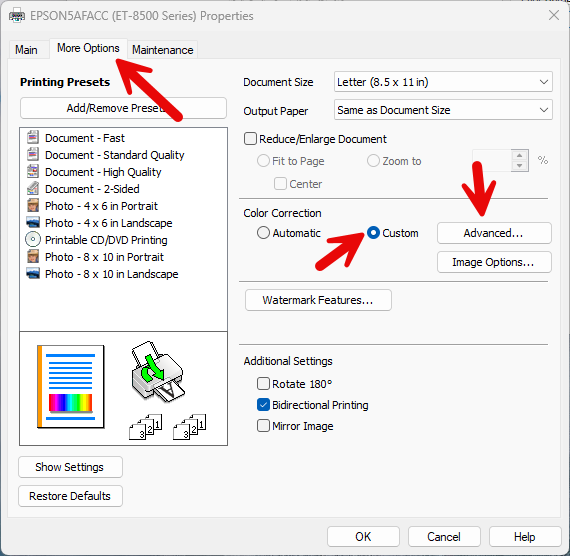
Set Color Correction to No Color Adjustment
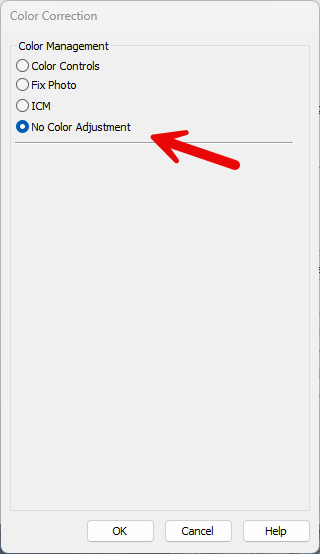
Now click the [OK] button to close each of the printer settings windows and the printer should start printing the page.
After this is done, close Adobe Color Printer Utility and then re-open it and repeat the steps above for each of the pages in the chart set. Be sure to double check all of the settings each time, you can't rely on the driver remembering previous settings and its very important to get them correct for printing these charts.
Be sure to check the Chart Printing Tips section above.
Once you have printed all of the pages for your chosen chart set, contact us through our support system for instructions on mailing the charts to us. They will usually be ready within about 10 days of us receiving the charts.
Epson Printers - Mac OS
First, it is necessary to check your driver version number in System Settings. If it is a single digit number or says AirPrint then you cannot use ICC profiles with this printer driver.
If thats the case, try checking with Epson to find out if they have a non-AirPrint driver version available for your model. Most Epson models have non-AirPrint drivers available.
See this page about AirPrint for instructions on how to install the correct driver from Epson.
If your driver version is a double-digit number then you can continue with these instructions.
Open the ColorSync Utility app. This comes pre-installed on Mac OS, it isn't something you need to install.
You can find it under Applications -> Utilities -> ColorSync Utility
Next, you will need to open the chart files and then print them:
* in Landscape orientation
* scale to 100%
* Color set to Print as Color Target
* Use Black Point Compensation turned off.
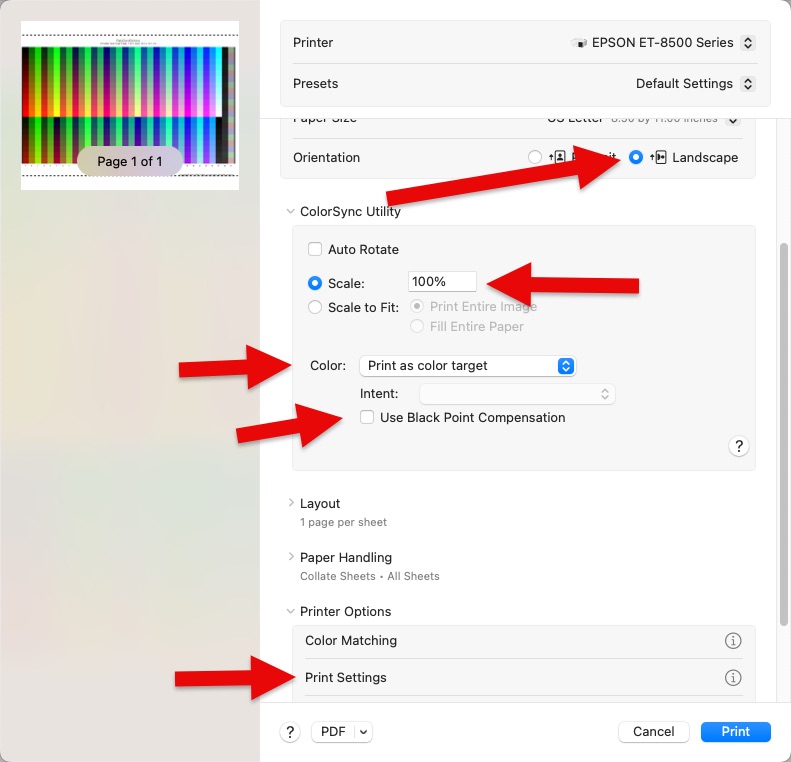
If "Print as Color Target" is grayed out, try going into your system settings and removing the printer then re-installing the driver downloaded from the Epson website and re-adding the printer. After doing this, double check again that its the correct Epson driver and not the AirPrint driver. That will typically fix this problem. If it is still grayed out, then you will be unable to print color charts on this printer from your Mac OS computer and will need to get access to a Windows computer to print the charts.
After setting the above, go to Printer Options -> Print Settings and set your Media Type, Paper Source, and Print Quality
If Color Settings is not grayed out, set it to Off (No Color Adjustment)
Then print the charts, keeping in mind the Chart Printing Tips section above. You will very likely need to set these options manually for each page when you go to print.
Once you have printed all of the pages for your chosen chart set, contact us through our support system for instructions on mailing the charts to us. They will usually be ready within about 10 days of us receiving the charts.
HP Printers
Most home/office HP printers do not support ICC color profiles.
If you have a wide format HP printer that does support ICC profiles, please contact us at [email protected] for assistance in creating profiles.
Other Printers and Operating Systems
Moth other printer brands (Brother, for example) do not support using ICC profiles. If yours does, please contact us at [email protected] for assistance in creating profiles.
If using an Operating System other than Windows or Mac OS (such as Linux, BSD, Haiku, TempleOS, or KolibriOS) then please contact us at [email protected] for assistance in creating profiles.
Packaging for Shipment
We recommend letting the charts dry for 24 hours and then stacking them with a sheet of plain printer paper between each one and placing them into a rigid 9x12 mailer envelope or shipping tube. The better shape the charts arrive to us in, the more accurate the resulting ICC profile will be.
Once you have all this together, contact us through our support system for mailing instructions.
Related Posts and Information
Last updated: July 11, 2025


