Unlock Accurate Color Printing in ON1 Photo Raw
Getting perfect prints from ON1 Photo Raw starts with using the right ICC printer profile. If you've ever been frustrated that your prints don't match what you see on screen, prints are too dark, off-color, or flat, printer profiles could be the missing link.
This guide will walk you through, step-by-step, how to install and apply ICC color profiles in ON1 Photo Raw on Mac. You'll learn:
- What ICC profiles are and why they matter for photo printing
- How to download and install printer profiles correctly on your Mac system
- How to select and apply the right profile inside ON1 Photo Raw's print settings
By the end, you'll have the knowledge and confidence to make your ON1 Photo Raw prints look true to life, whether you're producing fine art, photography portfolios, or everyday keepsakes.
ICC printer profiles are the secret ingredient to getting prints that truly match what you see on your screen. An ICC profile is simply a set of instructions that tells your printer how to interpret color with a specific paper, so reds stay rich, blues stay deep, and skin tones look natural. Without a profile, your printer is just guessing, often leading to dull or inaccurate results. With the right ICC profile, you take the guesswork out of the equation and give your images the best chance to shine. At Red River Paper, we provide free custom profiles for every one of our papers, because we believe your work deserves the accuracy and consistency that professionals rely on.
GET STARTED
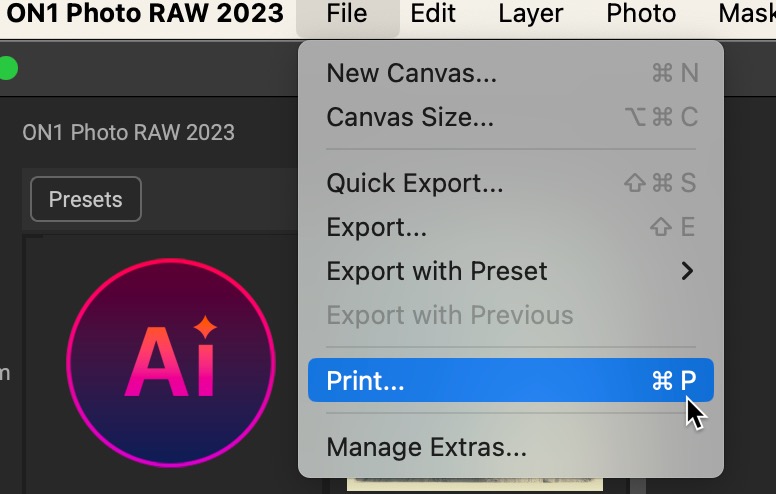
When you are ready to print, go to the File menu and click Print
The Print Settings dialog will appear:
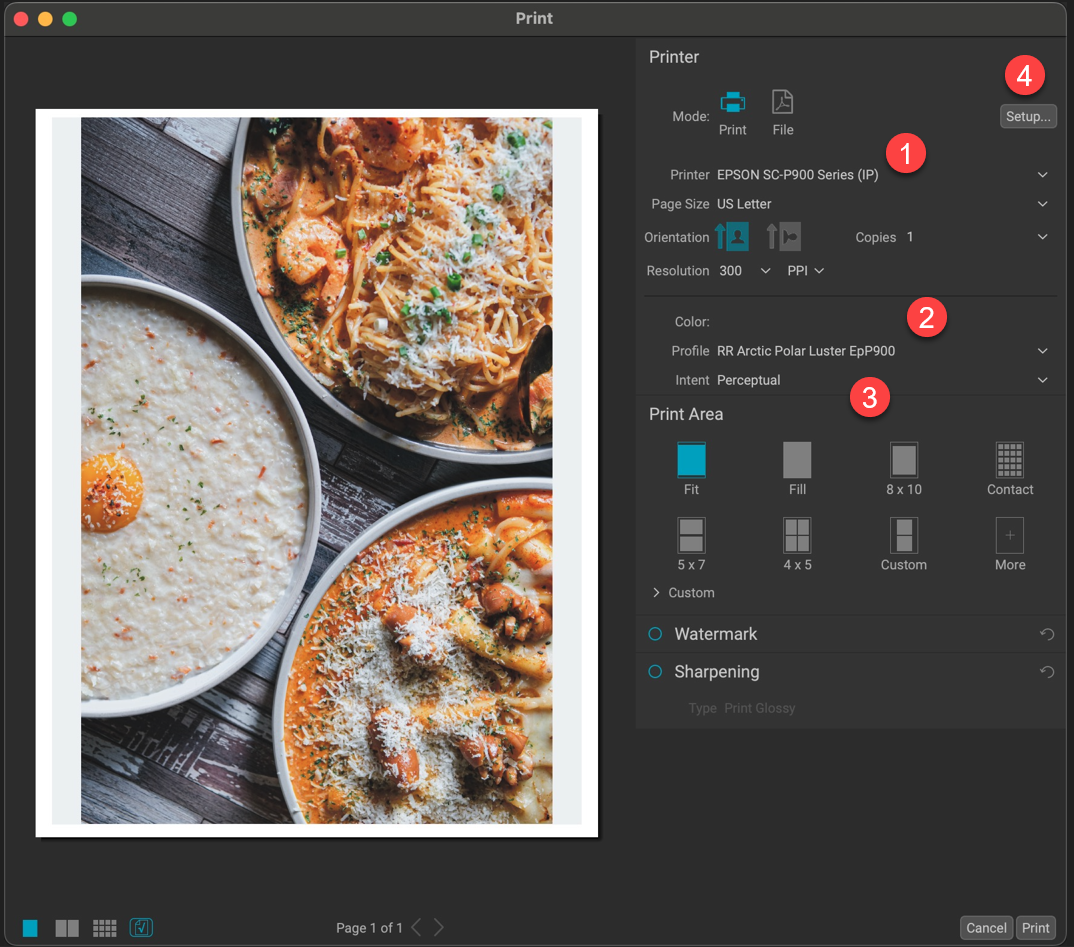
1. Select your printer from the Printer drop-down menu
2. Choose the profile for your printer/paper combination from the Printer Profile drop-down menu.
3. Intent - We recommend Perceptual rendering intent. Learn more about rendering intent here.
4. Click the Setup button
Epson Printer Setup
Scroll down for Canon printer setup
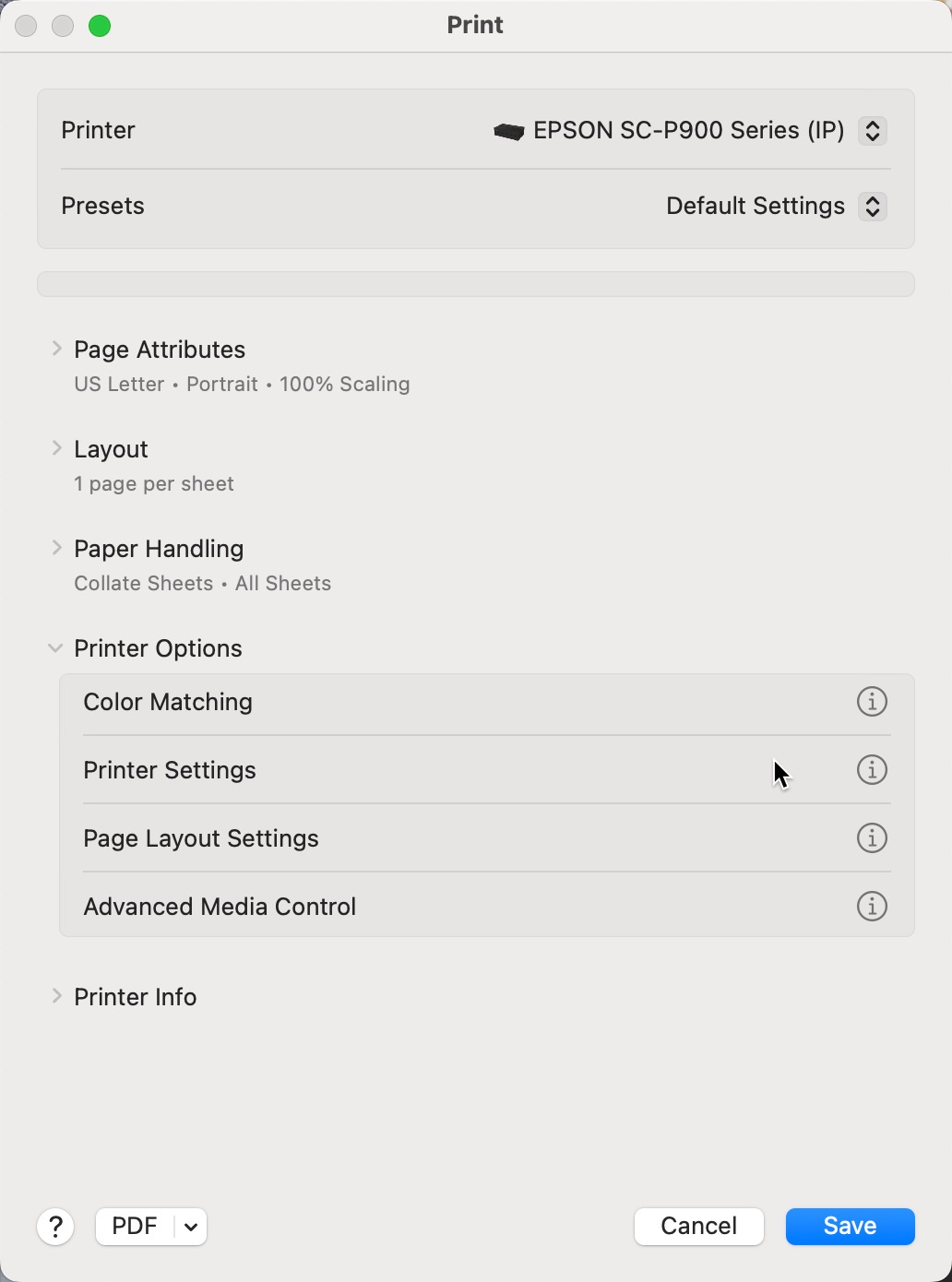
The Print dialog will appear:
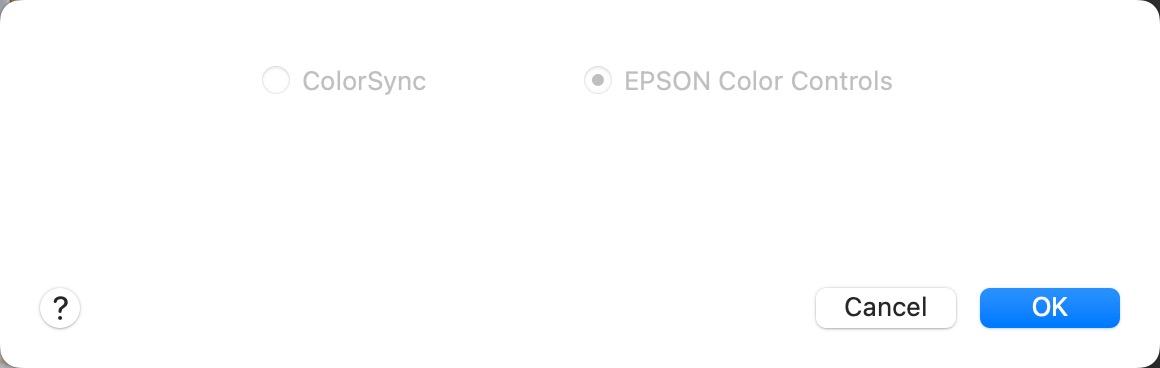
You may notice that on the Color Matching tab, both options are grayed out. This is normal and means that ON1 will be managing color output.
Click on the Printer Settings option
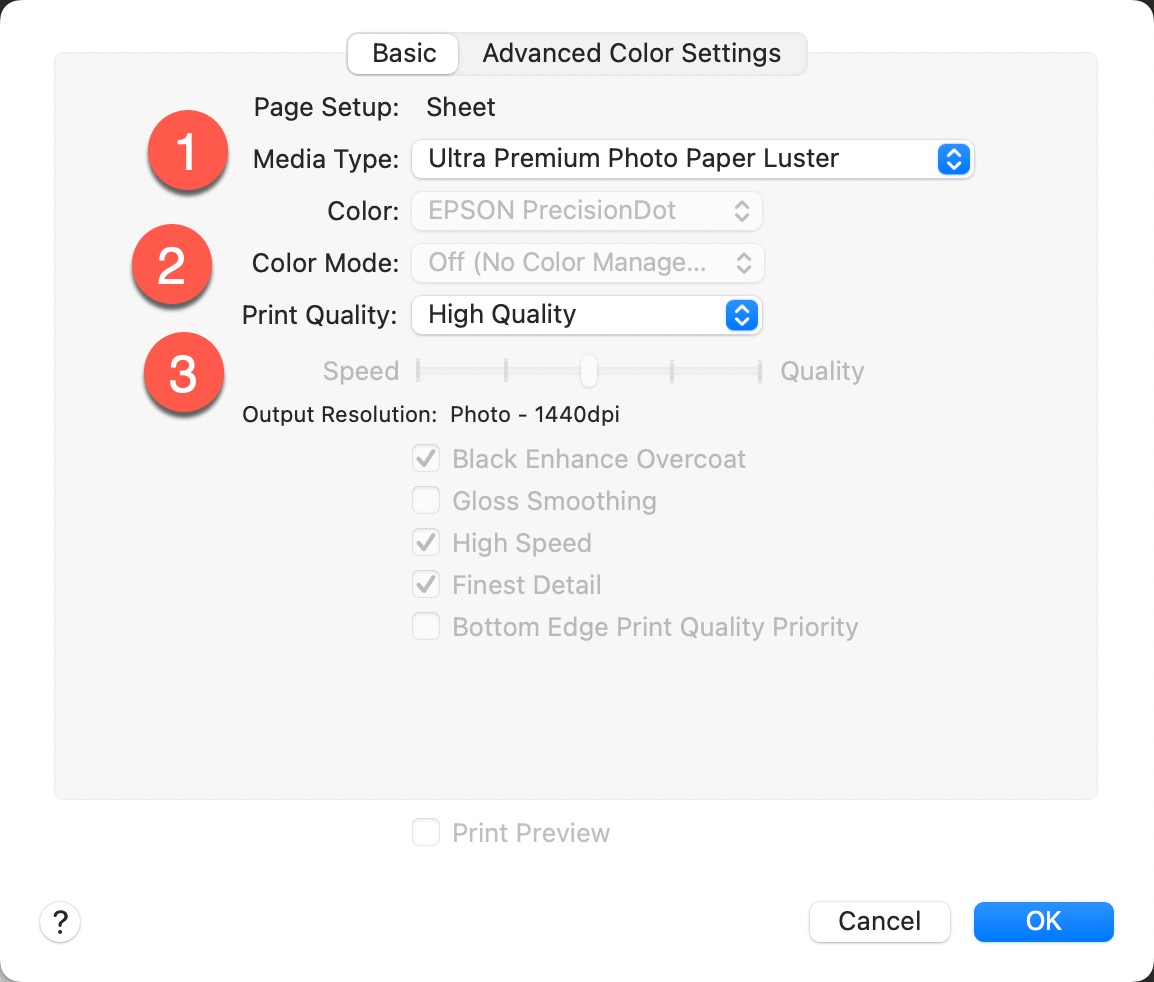
Set Media Type - You will find the recommended setting in the profile's instruction file.
Color Mode will be grayed out
Set Print Quality
Click OK
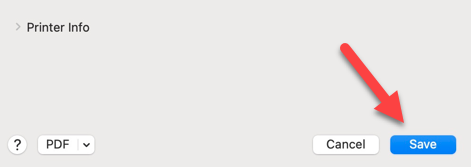
Now click Save at the bottom of the Print dialog to return to the ON1 print dialog.
Back at the ON1 print dialog, click Print when ready.
Canon Printer Setup
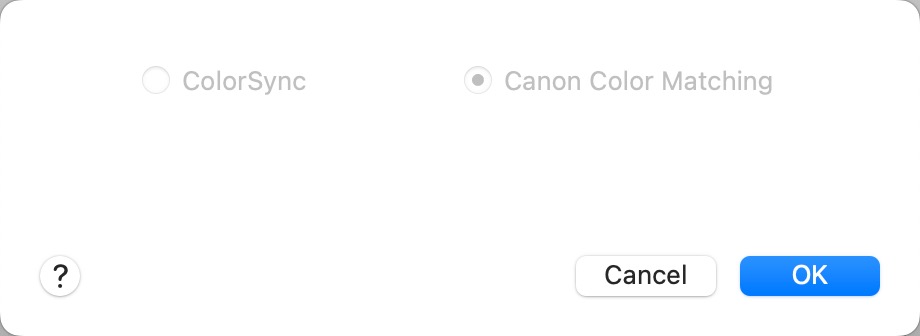
The Print dialog will appear:
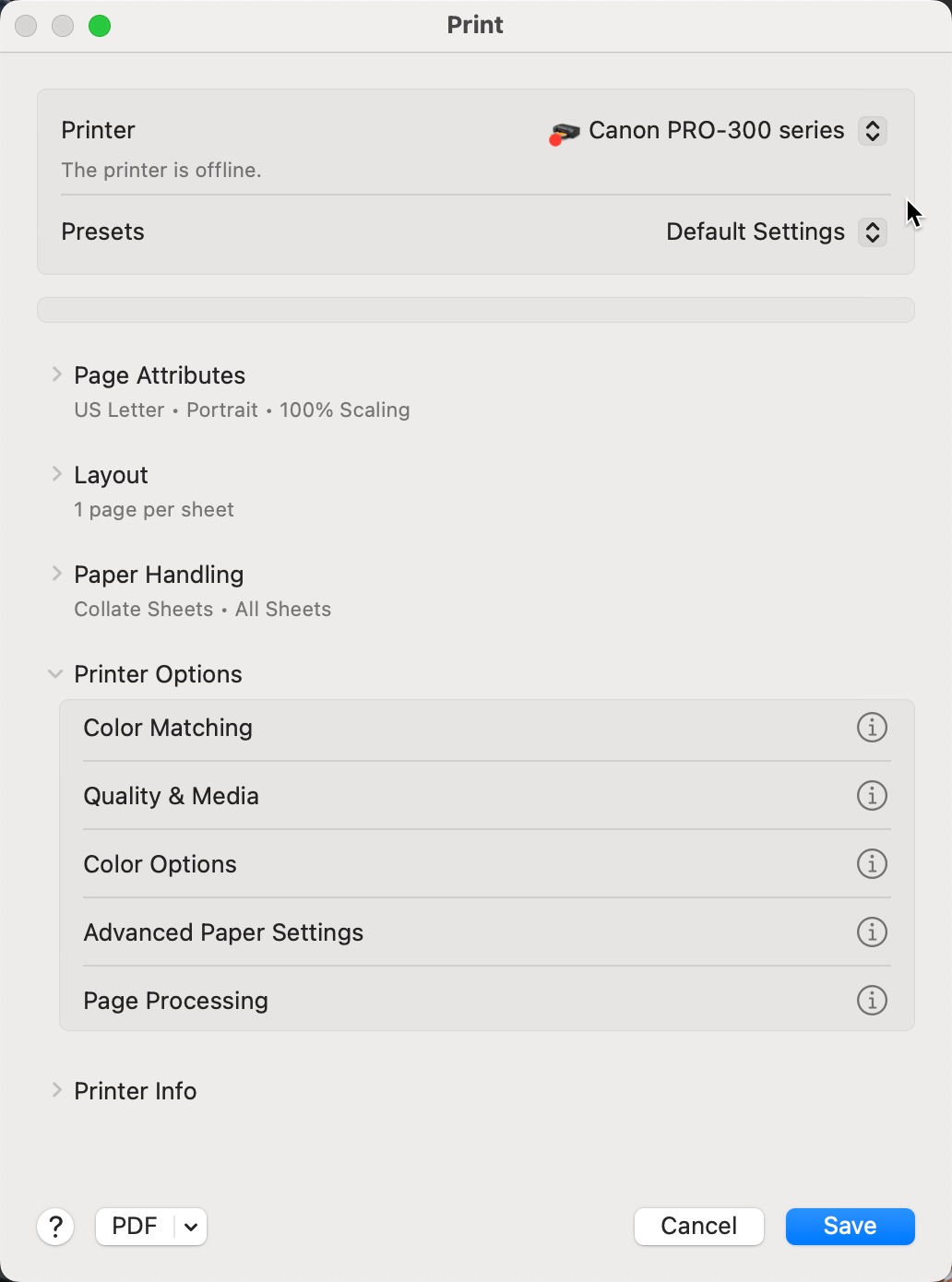
You may notice that on the Color Matching tab, both options are grayed out. This is normal and means that ON1 will be managing color output.
Click on the Quality & Media tab
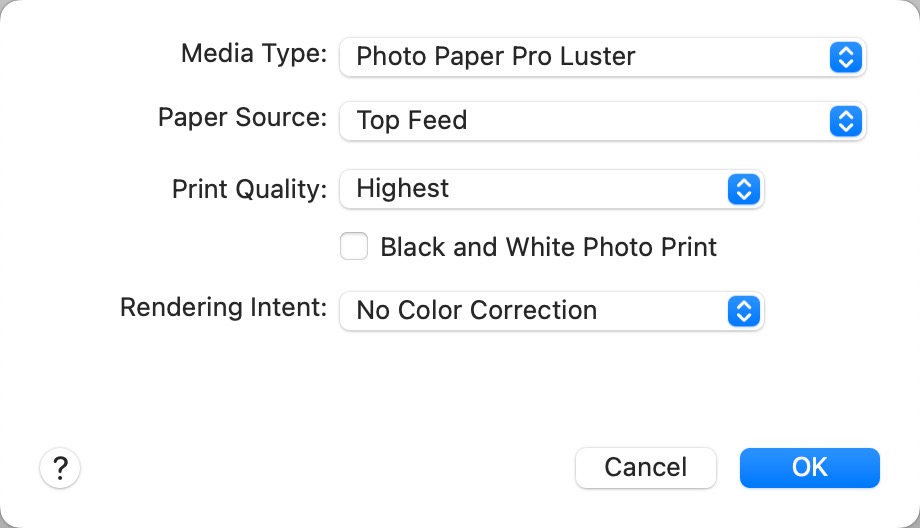
Set Media Type - You will find the recommended setting in the profile's instruction file.
Set Print Quality
Rendering Intent (if shown) choose No Color Correction
Click OK
Back at the ON1 print dialog, click Print when ready.
Related Posts and Information
Last updated: October 29, 2025


