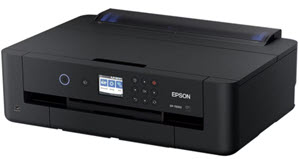
Red River Paper offers the largest online library of color printer profiles. Profiles for the Epson Expression XP-15000 are ready for your free download and use. Using ICC printer profiles for the Epson Expression XP-15000 and other printers will provide more consistent print quality and better overall color saturation.
Red River Paper offers the finest inkjet media in the sizes you need.
Red River Paper fully supports Epson printers with profiles and a Full Range of Photo & Fine art Inkjet Papers.
Profile Support
How to Install Profiles - Windows
How to Install Profiles - Mac
How to Use Profiles
More Profile Support
All Profile Download
Updated 26 August 2026 with new versions for all current Red River Paper media
Compatible Media
The Epson XP-15000 works with our full line of media - but some papers require special settings or special handling, as noted in the chart below.
Most of our papers should be fed using the printer's single-sheet top-rear feed. Some thinner papers may work using the cassette, but we recommend using the top-rear paper feed for best results. See the "Troubleshooting" section below if you encounter any problems. With this model, papers about 12 mils thick (such as our cotton art papers) often require a bit of manual pushing while the printer tries to feed them.
Due to manufacturing tolerances and differences in local climate, each individual printer may behave slightly differently. Therefore we highly recommend ordering samples of any paper you intend to use with this printer so that you can test out the paper with your specific printer before committing to a whole box of anything.
It's also worth noting that the information below is based on guidelines from our testing of this printer to help you get started quickly. Absolutely do experiment on your own. Read the manual for your printer. Play with different settings and try different feed paths; have fun learning your printer and see what works best for you.
| Red River Media | Media Type Setting | Notes and Tips |
|---|---|---|
| Adhesive Glossy Sticker Paper | Premium Photo Paper Glossy | |
| Adhesive Matte Sticker Paper | Premium Presentation Paper Matte | |
| Arctic Polar Luster | Ultra Premium Photo Paper Luster | |
| Aurora Art Natural 250 | Velvet Fine Art Paper | |
| Aurora Art Natural 300 | Velvet Fine Art Paper | May require manual assistance getting it to feed. May need to turn on "Thick Paper" setting. |
| Aurora Art White 250 | Velvet Fine Art Paper | |
| Aurora Art White 300 | Velvet Fine Art Paper | May require manual assistance getting it to feed. May need to turn on "Thick Paper" setting. |
| Big Bend Baryta | Ultra Premium Photo Paper Glossy | May require manual assistance getting it to feed. May need to turn on "Thick Paper" setting. May encounter skewing (see Troubleshooting section below). |
| Color Jet | Premium Presentation Paper Matte | |
|
Hanji Baram Hanji Noori |
Premium Presentation Paper Matte | If pages have a lot of curl on the edges, turn on "Thick Paper" setting. May notice ink smudges on edges, especially corners. |
| Palo Duro Baryta Fiber (discontinued) | Ultra Premium Photo Paper Glossy | May require manual assistance getting it to feed. May need to turn on "Thick Paper" setting. May encounter skewing (see Troubleshooting section below). |
| Palo Duro Etching | Velvet Fine Art Paper | Brush with an anti-static brush before printing to help prevent flecking. May require manual assistance getting it to feed. May need to turn on "Thick Paper" setting. |
| Palo Duro Fiber Matte | Premium Presentation Paper Matte | |
| Palo Duro Softgloss Rag | Ultra Premium Photo Paper Luster | May notice gloss differential in dark blues and dark greens. May require manual assistance getting it to feed. May need to turn on "Thick Paper" setting |
| Paper Canvas | Premium Presentation Paper Matte | |
| Pecos River Gloss 155 (42lb) | Ultra Premium Photo Paper Glossy | May notice light "pizza wheel" marks on surface. May experience skewing, see Troubleshooting section below. |
| Pecos River Gloss 230 (60lb) | Ultra Premium Photo Paper Glossy | If pages have a lot of curl on the edges, turn on "Thick Paper" setting. May notice light "pizza wheel" marks on surface. May experience skewing, see Troubleshooting section below. |
|
Pecos River Gloss 320 (86lb) Pecos River Gloss 360 (96lb) |
Ultra Premium Photo Paper Glossy | Turn on "Thick Paper" setting. May notice light "pizza wheel" marks on surface. May experience skewing, see Troubleshooting section below. May require manual assistance getting it to feed. |
| Polar Matte 230 (60lb) | Premium Presentation Paper Matte | |
| Polar Matte 330 (88lb) | Premium Presentation Paper Matte | Turn on "Thick Paper" setting. May require manual assistance getting it to feed. |
| Polar Gloss Metallic | Ultra Premium Photo Paper Glossy | Brush with an anti-static brush before printing to help prevent flecking. |
|
Polar Luster Metallic |
Ultra Premium Photo Paper Luster | Brush with an anti-static brush before printing to help prevent flecking. |
| Premium Gloss 120 | Premium Photo Paper Glossy | May notice light "pizza wheel" marks on surface. |
|
Premium Matte 120 (32lb) Premium Matte 176 (47lb) |
Premium Presentation Paper Matte | |
|
Premium Matte 185 (50lb) Premium Matte 230 (60lb) |
Premium Presentation Paper Matte | |
| River Linen | Premium Presentation Paper Matte | |
| Transparent Film | Ultra Premium Photo Paper Glossy | Turn on "Thick Paper" setting. May notice some random ink blotches, especially near the edges. |
| Trinity River Velvet | Velvet Fine Art Paper | May require manual assistance getting it to feed. May need to turn on "Thick Paper" setting. |
| UltraPro Gloss | Ultra Premium Photo Paper Glossy | |
| UltraPro Luster | Ultra Premium Photo Paper Luster | |
| UltraPro Satin | Ultra Premium Photo Paper Luster | |
| UltraPro SemiGloss Duo | Ultra Premium Photo Paper Luster |
Troubleshooting
We know all too well how frustrating printers can be sometimes! Here are some steps to take if you find yourself running into issues printing on your Epson printer using our media.
With any printer, the Epson XP-15000 included, the first troubleshooting step if you are running into issues with color, centering/margins, paper jamming, missing media types, or other technical problems, is to ensure you have the latest official Epson printer driver installed.
You can download the official Epson driver here: XP-15000 Driver Download
On Mac OS, doing a system update can cause the official Epson driver to be silently replaced by Apple's generic printer driver that they call "AirPrint". You can find instructions on how to find your driver version and install the correct one here: https://www.redrivercatalog.com/infocenter/how-to-fix-missin...
Often on Mac OS, even if you have the correct driver installed, removing the printer, updating the driver, and re-adding the printer and then rebooting the computer will fix the issue.
On Windows, if you connect the printer to the computer without having installed the Epson driver, it will use Microsoft's generic printer driver that they call "IPP". To correct the issue, simply download and install the latest driver from the link above and it will replace the generic printer driver with the correct one.
Many issues printing with the Epson XP-8800 are also solved by printing using the free Epson Print Layout software (rather than printing through Photoshop, Lightroom or other editing programs). See the Epson Print Layout section below.
Print Skewing
Due to the roller design of this model, papers with some curl at the edges may skew in the last couple of inches of the print. If you encounter this, try turning on the Thick Paper setting on the printer's front panel
(Settings->Printer Settings->Thick Paper) and gently bend the edges of the paper back and hold them for a minute right before printing to try to remove some of the curl. Increasing the humidity in your printing area may also help remove curl from the paper.
Banding
Especially near the end of an ink cartridge, or the beginning of a new one this printer model can experience banding (stripes) going across the print. To correct this you will run a Nozzle Check from the printer's front panel (Maintenance->Print Head Nozzle Check) and once that is printing correctly then run both the Horizontal and Vertical Alignments under Maintenance->Print Head Alignment.
Most other common issues are addressed in our Infocenter and our Frequently Asked Questions page.
You can also contact us with technical support questions.
For issues related to the printer itself and not related to our paper and our ICC profiles, you may also consider contacting Epson customer service at 1 (800) 463-7766
Epson Print Layout
This model works with the free Epson Print Layout software, you can download it from here: https://epson.com/epson-print-layout
We recommend giving it a try, as it makes it easier to select the correct settings when printing and solves a wide range of issues that people run into.
If your printer doesn't show up in Epson Print Layout, that is an indicator that you have the wrong driver installed. Please see the Troubleshooting section above.
You can find instructions for using ICC profiles with Epson Print Layout
Related Posts and Information
Last updated: September 01, 2026


