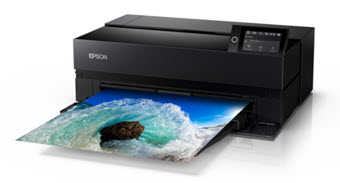
Download free printer color ICC profiles for the Epson SureColor P700 and P900 for Red River Paper brand inkjet papers. Red River Paper provides premium inkjet media in the sizes you need, engineered for exceptional performance. Crafted by top mills and coaters, Red River Paper delivers professional-grade quality with the consistency serious creatives rely on at a better value and backed by real support.
Red River Paper fully supports the Epson SureColor printers with profiles and a Full Range of Photo & Fine Art Inkjet Papers.
Check out our P900 Review and Insiders Guide or the P700 Review and Insiders Guide.
Profile Support
How to Install Profiles - Windows
How to Install Profiles - Mac
How to Use Profiles
More Profile Support
All Profile Download
Updated 29 July 2026 with new versions for all papers in our current lineup.
Epson Media Files
New to this series of printers is the use of Epson Media Files. They appear as media types in the printer driver and contain important information such as paper thickness, platen gap, drying time, and more. These important controls used to be available in the printer driver menus. The files are created, imported, and exported using the Epson Media Installer. This app is included when you first download drivers from the Epson website. EMY2 files don't replace ICC files. You use both together.
Red River Paper includes EMY2 files for our papers with our P700/P900 printer profiles. They are not required but we suggest their use with thicker papers. Using Version 2 of Epson Media Installer is required to install the .EMY2 files.
Read more about Epson Media files and how to use them here.
Compatible Media
The Epson P700 and P900 work with our full line of media (except our glossy sticker paper) - but some papers require special settings or special handling, as noted in the chart below.
For papers over 11mil thickness, we recommend using the manual, front paper feed. See this video: https://www.youtube.com/watch?v=wUCtAZTk4IA
Due to manufacturing tolerances and differences in local climate, each individual printer may behave slightly differently. Therefore we highly recommend ordering samples of any paper you intend to use with this printer so that you can test out the paper with your specific printer before committing to a whole box of anything.
Its also worth saying that the information below are guidelines based on our testing of this printer to help you get started quickly. Absolutely do experiment on your own. Read the manual for your printer. Play with different settings and try different feed paths, have fun learning your printer and see what works best for you.
Note that Epson has changed the names of the media settings over the life of the P700 / P900, so you may see them listed slightly differently in the driver or on the printer's screen. Be sure that you are using the latest firmware and email us at support@redriverpaper.com with any questions.
| Red River Media | Media Type Setting | Notes and Tips |
|---|---|---|
| Adhesive Glossy Sticker Paper | NOT COMPATIBLE | NOT COMPATIBLE |
| Adhesive Matte Sticker Paper | Presentation Paper Matte | May curl slightly after printing |
| Arctic Polar Luster | Ultra Premium Photo Paper Luster | Use front feed if top feed struggles |
| Aurora Art Natural 250 | Velvet Fine Art Paper |
Use front feed if top feed struggles |
| Aurora Art Natural 300 | Velvet Fine Art Paper | Turn on "Thick Paper" setting and use front paper feed |
| Aurora Art White 250 | Velvet Fine Art Paper | Use front feed if top feed struggles |
| Aurora Art White 300 | Velvet Fine Art Paper | Turn on "Thick Paper" setting and use front paper feed |
| Big Bend Baryta | Ultra Premium Photo Paper Luster | Front paper feed recommended |
| Color Jet | Premium Presentation Paper Matte | |
|
Hanji Baram Hanji Noori |
Ultra Premium Presentation Paper Matte | If pages have a lot of curl on the edges, turn on "Thick Paper" setting |
| Palo Duro Baryta Fiber (discontinued) | Ultra Premium Photo Paper Luster | Turn on "Thick Paper" setting and use front feed |
| Palo Duro Etching | Velvet Fine Art Paper | Turn on "Thick Paper" setting and use front feed. Brush with an anti-static brush before printing to help prevent flecking. |
| Palo Duro Satin (discontinued) | Ultra Premium Photo Paper Luster | |
| Palo Duro Softgloss Rag | Ultra Premium Photo Paper Luster | Front feed highly recommended |
| Paper Canvas | Ultra Premium Presentation Paper Matte | Use in top feed or front feed if top feed struggles |
| Pecos River Gloss 155 (42lb) | Premium Photo Paper Glossy | May notice light "pizza wheel" marks on surface. Using front feed may help reduce these marks. |
| Pecos River Gloss 230 (60lb) | Ultra Premium Photo Paper Glossy | If pages have a lot of curl on the edges, turn on "Thick Paper" setting. May notice light "pizza wheel" marks on surface. Using front feed may help reduce these marks. |
|
Pecos River Gloss 320 (86lb) Pecos River Gloss 360 (96lb) |
Ultra Premium Photo Paper Glossy | Turn on "Thick Paper" setting and use front paper feed. May notice light "pizza wheel" marks on surface. |
|
Polar Matte 120 (32lb) Polar Matte 230 (60lb) |
Ultra Premium Presentation Paper Matte | Use in top feed or front feed if top feed struggles |
| Polar Matte 330 (88lb) | Premium Presentation Paper Matte | Turn on "Thick Paper" setting and use the front feed |
| Polar Gloss Metallic | Premium Photo Paper Glossy | Brush with an anti-static brush before printing to help prevent flecking. |
|
Polar Luster Metallic |
Ultra Premium Photo Paper Luster | Brush with an anti-static brush before printing to help prevent flecking. |
| Premium Gloss 120 | Photo Paper Glossy | Use standard quality ("Quality" setting) or draft quality to avoid over-saturating the paper. May notice light "pizza wheel" marks on surface. Using front feed may help reduce these marks. |
|
Premium Matte 120 (32lb) Premium Matte 176 (47lb) |
Ultra Premium Presentation Paper Matte |
Use in top feed or front feed if top feed struggles |
|
Premium Matte 170 (45lb) Premium Matte 230 (60lb) |
Ultra Premium Presentation Paper Matte | Use in top feed or front feed if top feed struggles |
| River Linen | Ultra Premium Presentation Paper Matte | Use in top feed or front feed if top feed struggles |
| Transparent Film | Ultra Premium Photo Paper Glossy | Turn on "Thick Paper" setting and use top feed or front feed. May notice light scratching on surface. |
| Trinity River Velvet | Velvet Fine Art Paper | Turn on "Thick Paper" setting and use front feed. May notice light surface burnishing. |
| UltraPro Gloss | Premium Photo Paper Glossy | |
| UltraPro Luster | Ultra Premium Photo Paper Luster | Use in top feed or front feed if top feed struggles |
| UltraPro Satin | Ultra Premium Photo Paper Luster | |
| UltraPro SemiGloss Duo | Ultra Premium Photo Paper Luster | Use in top feed or front feed if top feed struggles |
Troubleshooting
We know all too well how frustrating printers can be sometimes! Here are some steps to take if you find yourself running into issues printing on your Epson printer using our media.
With any printer, the Epson P700 and P900 included, the first troubleshooting step if you are running into issues with color, centering/margins, paper jamming, missing media types, or other technical problems, is to ensure you have the latest official Epson printer driver installed.
You can download the official Epson driver here: P700 or P900
On Mac OS, doing a system update can cause the official Epson driver to be silently replaced by Apple's generic printer driver that they call "AirPrint". You can find instructions on how to find your driver version and install the correct one here: https://www.redrivercatalog.com/infocenter/how-to-fix-missin...
Often on Mac OS, even if you have the correct driver installed, removing the printer, updating the driver, and re-adding the printer and then rebooting the computer will fix the issue.
On Windows, if you connect the printer to the computer without having installed the Epson driver, it will use Microsoft's generic printer driver that they call "IPP". To correct the issue, simply download and install the latest driver from the link above and it will replace the generic printer driver with the correct one.
Many issues printing with the Epson P700 and P900 series are also solved by printing using the free Epson Print Layout software (rather than printing through Photoshop, Lightroom or other editing programs). See the Epson Print Layout section below.
Most common issues are addressed in our Infocenter and our Frequently Asked Questions page.
You can also contact us with technical support questions through this page: https://www.redrivercatalog.com/contact-us.html
Epson Print Layout
This model works with the free Epson Print Layout software, you can download it from here: https://epson.com/epson-print-layout
We recommend giving it a try, as it makes it easier to select the correct settings when printing and solves a wide range of issues that people run into.
If your printer doesn't show up in Epson Print Layout, that is an indicator that you have the wrong driver installed. Please see the Troubleshooting section above.
You can find instructions for using ICC profiles with Epson Print Layout here: https://www.redrivercatalog.com/profiles/how-to-use-inkjet-p...
Last updated: August 06, 2026


