How To Turn TV Images Into Beautiful Prints
By ARTHUR H. BLEICH
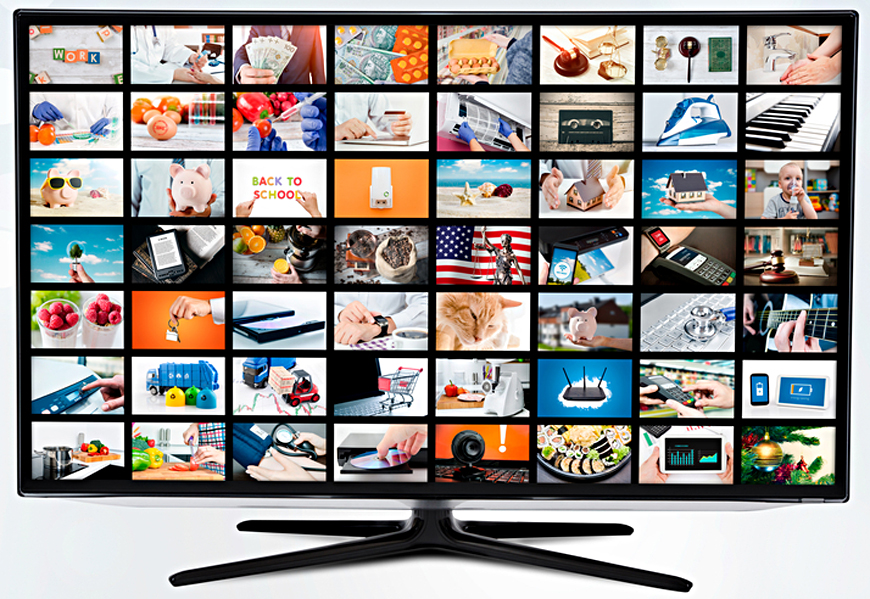
With months of bad weather facing most parts of the country, why not shoot images from the comfort of your living room? With a simple click of its remote, your TV can whisk you to locations and events all over the world where you can capture images and turn them into beautiful prints.
THERE ARE SOME RESTRICTIONS
You can use captured TV images in many ways as long as they are for your own personal use, for example, to create photo collections of your favorite celebrities, sports action, wildlife, hobbies, landscapes and more. Or capture and print some beautiful views of exotic locations for home decorations. You can also send your captures as email attachments to friends and relatives or use them as greeting card illustrations. But you cannot use them commercially and/or receive income from them, nor can they be used to promote services or sales of products.
You can, however, use images created before 1929 that are displayed on TV as those are in the Public Domain, free to use without restrictions. Other images, regardless of age are also in the Public Domain if they were created by the U.S. Federal Government as part of employee’s official duties. These include those produced by the Military, NASA, the National Park Service and many other federal agencies.
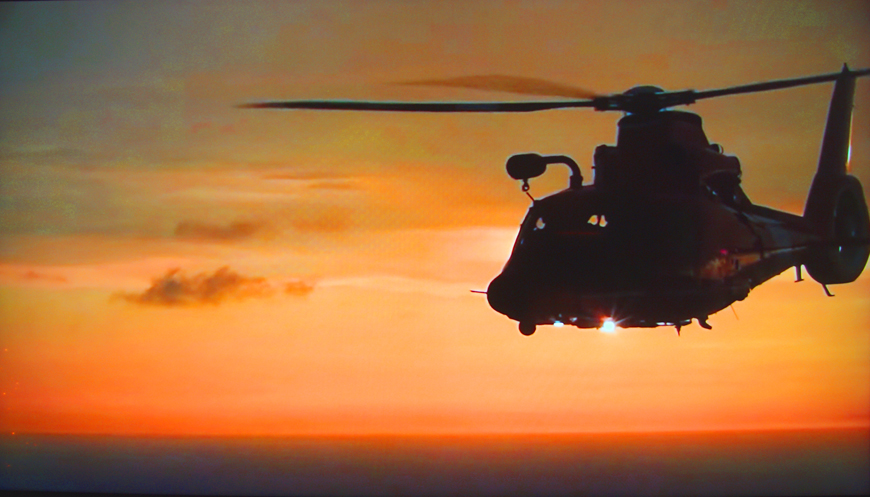
IMAGE CAPTURE ON ANALOG TV WAS A HASSLE
From its early development through the end of the 20th century, TV signals were displayed on screens using cathode ray tubes (CRT) and were transmitted as interlaced picture signals. Halves of the image were transmitted in rapid succession at 1/30th of a second which the viewer’s mind merged into a single picture. To capture the entire image, your camera’s shutter speed could be no faster than 1/15th of a second and that usually made it necessary to use a tripod to avoid camera shake.
TODAY’S DIGITAL TV SCREEN CAPTURE IS EASY
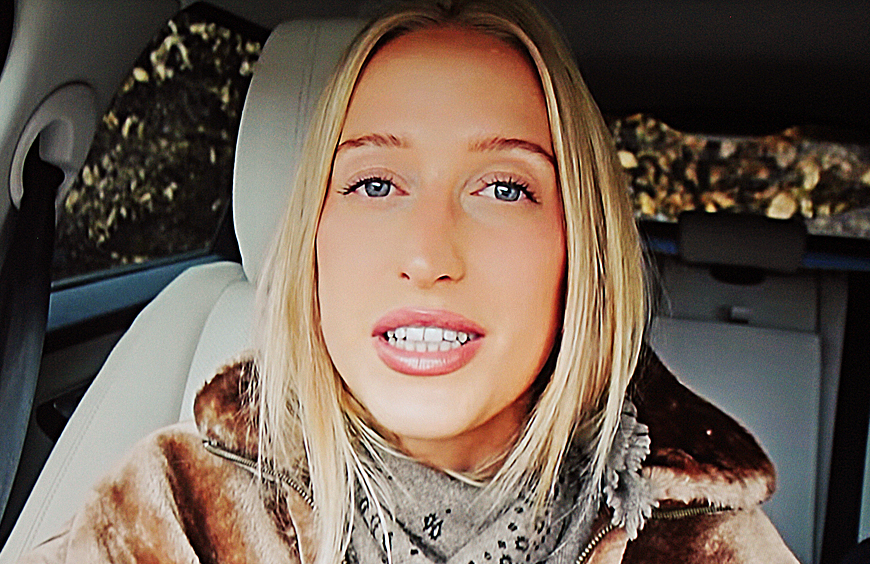
Today’s TV screens are digital and their high resolution images appear intact without being split into two parts. Coupled with their impressive resolution, they look smooth and sharp. Compared to analog images with resolutions of 640 x 480 (and lower), most current, digital 4K TVs have resolutions of 3840 x2160 and display impressive picture quality. Better yet, because each frame shows a complete image, you can use higher shutter speeds that don’t require a tripod. And most TV remotes allow you to pause and advance the image frame by frame) which makes it easy to capture sports and other fast-moving images at the peak of action.
CHOOSING THE BEST SHUTTER SPEED
Although modern digital TVs display complete images, they may do so at different rates of speed. This is called their Refresh Rate and is specified in Hertz (hz). Without getting entangled in technical details, in the US and Canada they’ll usually be transmitted either 60Hz or 120Hz. This translates into 60 or 120 images every second. The easiest way to tell which shutter speed(s) will give you the best results with your TV’s refresh rate is to shoot a few test shots. Set your camera’s ISO to 200 (as a starting point) and your Mode to Shutter Priority and begin with 1/60 sec. Then use multiples of it such as 1/120, 1/180, and 1/240 (or as close to them as your camera allows).
You don’t have to worry about aperture since you’re shooting a flat object and everything will be in focus regardless of the f-stop your camera automatically chooses to use. But if, for some reason, you want to shoot at a specific aperture and keep your shutter speed locked in, you usually can do so by adjusting your ISO. Remember, though, if the ISO is set too high, you may begin to pick up unwanted “noise” and other artifacts in your image.
Time out: I’m frequently asked this question: “If I pause or freeze a frame of the image, do I have to be concerned about Refresh Rate?” Answer: “Yes.” While the content of the image is stable and frozen, your TV display hardware is actively working to refresh that still image as many times a second as it was when originally transmitted.
After you’ve shot a few tests at different shutter speeds, examine them as printed images because it's usually easier to see any artifacts that way. Choose the best one and use the shutter speed at which it was shot as your standard shutter speed.
TIPS FOR CAPTURING THE BEST TV IMAGES
1. Set your camera to Shutter Priority (Tv) and to the the speed determined to be best by the screen refresh tests recommended above.
2. Nighttime is best to shot your images with no bright external light that may cause reflections on the TV screen. However if you can get the room reasonably dark, go for it. It’s okay to keep some low lighting on as long as they do not cause reflections on the screen.
3. Set the focal length of your lens to a wider field of view rather than its telephoto. When hand-holding cameras at slower shutter speeds, wider angle lens settings (under 50mm equivalent) minimize camera shake.
4. Try framing the photo so that only the TV screen is in the frame. However It is likely that the image aspect ratio is not the same as the camera’s, so unless you crop the image in-camera you may have to do some cropping in your imaging program.
5. Keep the camera lens as parallel to the screen as possible rather than shooting at an angle.
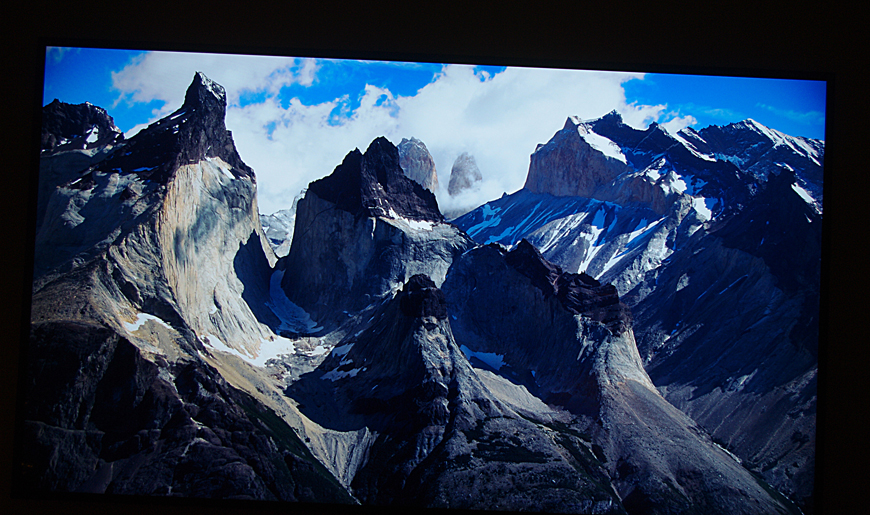
Image>Rotate>Straighten Image and then cropped slightly.
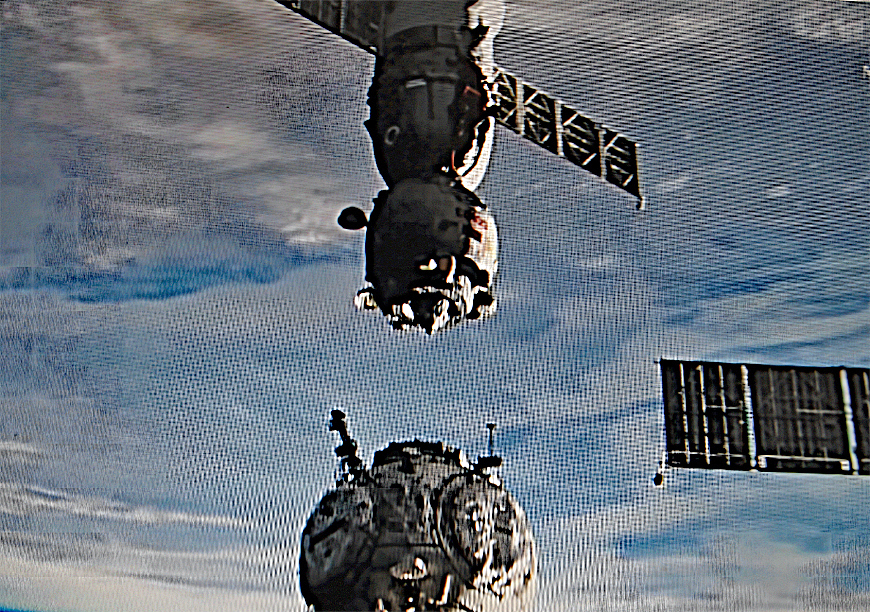
6. Moiré patterns can sometimes appear. They are caused by Interference between the fine, repetitive pixel grid of the screen and the camera's sensor grid and can usually be eliminated by adjusting the camera's position or settings. Change your shooting angle slightly, zoom in or out or try a slower shutter speed. If you must use the photo, most imaging programs offer a fix.
SMARTPHONES CAN ALSO CAPTURE TV IMAGES
Smartphones are usually automated allowing the user no control over traditional camera functions such as aperture and shutter speed. But despite that, some can do surprisingly well. Take a few test shots and see for yourself.
If you’re not satisfied with the results but still prefer to use your phone, all is not lost. There are several apps that can enhance the camera functions of many iPhone and Android models that cost just a few dollars. Consider adding an app that allows you to set your smartphone camera to different shutter speeds as this will usually do the trick.
RESOURCES:
Google the following:
Smartphone apps that allow shutter speed control.
Original Publication Date: January 03, 2026
Article Last updated: January 06, 2026
Related Posts and Information
Categories
About Photographers
Announcements
Back to Basics
Books and Videos
Cards and Calendars
Commentary
Contests
Displaying Images
Editing for Print
Events
Favorite Photo Locations
Featured Software
Free Stuff
Handy Hardware
How-To-Do-It
Imaging
Inks and Papers
Marketing Images
Monitors
Odds and Ends
Photo Gear and Services
Photo History
Photography
Printer Reviews
Printing
Printing Project Ideas
Red River Paper
Red River Paper Pro
RRP Products
Scanners and Scanning
Success on Paper
Techniques
Techniques
Tips and Tricks
Webinars
Words from the Web
Workshops and Exhibits
all
Archives
September, 2026
August, 2026
July, 2026
June, 2026
May, 2026
April, 2026
March, 2026
February, 2026
January, 2026
more archive dates
archive article list


Red River Paper Inc. All contents © 1997 - 2026. 8900 Ambassador Row, Dallas Texas, 75247. Prices, specifications, and images are subject to change without notice. Not responsible for typographical or illustrative errors. Website Terms & Conditions | Acceptable Use
Site Development & Maintenance: Phosphor Media, LLC